


🎨 Elevate your art game with precision and style — don’t just draw, dominate.
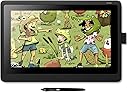
The Wacom Cintiq 16 is a professional-grade creative pen display featuring a 15.6" Full HD anti-glare screen and the industry-leading Pro Pen 2 with 8192 pressure sensitivity levels and tilt recognition. Designed for artists, students, and professionals, it offers a natural drawing experience with minimal parallax, lightweight portability, and broad Mac/PC compatibility. Its ergonomic foldable legs and included accessories make it a complete, ready-to-use digital art solution that balances premium performance with affordability.


| ASIN | B07L77GTTY |
| Active Surface Area | 13.60" x 7.60" |
| Additional Features | Anti-Glare Glass |
| Best Sellers Rank | #161 in Computer Graphics Tablets |
| Brand | Wacom |
| Built-In Media | Wacom Cintiq 16 pen display, Wacom Pro Pen 2, Detachable pen holder with 3 replacement nibs (standard) and nib removal tool, 3-in-1 cable (1.8m), AC adaptor (12V, 3A, 36W), Power cable (1.8m), Quick Start Guide, Warranty card (Japan, Asia Pacific, China only), Regulation sheet |
| Color | Black |
| Compatible Devices | Mac, PC |
| Connectivity Technology | HDMI |
| Customer Reviews | 4.6 out of 5 stars 3,139 Reviews |
| Display Type | LCD |
| External Testing Certification | ANATEL |
| Global Trade Identification Number | 00753218986399 |
| Item Dimensions L x W | 11.2"L x 16.6"W |
| Item Type Name | Wacom Cintiq 16 Drawing Tablet with Screen (DTK1660K0A) |
| Item Weight | 4.2 pounds |
| Manufacturer | Wacom Technology Corporation |
| Mfr Part Number | DTK1660K0A |
| Model Name | Wacom Cintiq 16 |
| Model Number | DTK1660K0A |
| Native Resolution | 1920x1080 |
| Number of Items | 1 |
| Number of Packs | 1 |
| Operating System | Windows 7, macOS 10.12 Sierra |
| Pressure Sensitivity | 8192 levels |
| Screen Size | 15.6 inches |
| Special Feature | Anti-Glare Glass |
| Specific Uses For Product | Drawing |
| Target Audience | Student, Teacher |
| UPC | 753218986399 |
| Unit Count | 1 Count |
| Warranty Description | 1 year |
T**T
I love this thing! Get a screen protector though!
Personally, after having tried the ipad pro, I was highly disappointed from all the hype. I was promised a full version of photoshop and still it was watered down just like photoshop express (but they claim they are adding functions as time moves forward, personally I felt I was lied to by apple). I used my ipad pro with the astro pad app to use the full version of photoshop with my mac pro desktop and it worked decently, but wacom devices always blows lesser products out of the water. Why? Simply put, the hover technology. It's a small feature but this is all due to the nature of the design and technology used. Apple has a pen that must be charged, but you must also "click" or actually touch the surface of the tablet in order to "move" the mouse to a new position. So the first part of a stroke is always a little tricky and you might haev to redo and backstep until you find the proper point which won't always be exact either. With the Wacom, theres no charging the pen, you can hover without touching or giving an input, and move the mouse and get a more precise brush stroke from start to finish because you know precisely where you are at without having to guestimate anything. It's like magic basically, and the hover function also works well with airbrushing techniques as well. Wacom also has a better tilt control and pressure sensitivity in my opinion. The lack of a hover mouse movement feature for the ipad pro may be a small annoying thing that frankly, I think apple really dropped the ball with going that direction with their pen technology being rooted in bluetooth, and I'm not entirely sure why they did it but I have a feeling it has to do with copyrights and patents. Wacom is the clear industry leader in the graphic design space for a long time used by many pros in the graphic design industry, and personally I wanted a drawing pad for my desktop as my main art station, but I could still use my ipad pro for on the go sketches and then transfer the data over to my computer and work on the full version of photoshop with this thing. If you are looking for mobility and a tablet, this is not the thing you want, but if you are looking for an art station with a desktop and you have the full version of photoshop, this thing is pretty much the best money can buy, and its significantly cheaper than the wacom cintiq 13hd that I purchased years ago which was probably like 1300 bucks and this thing is basically the same and is half the price. The features are great, you can customize everything, but personally I use this with a razer tartarus v2 which I also customize to have all the photoshop shortcuts button mapped to the tartarus keypad for extremely quick editing without having to change tools or waste small amounts of time fiddling with the user interface and moving the mouse, it just becomes muscle memory and button pressing which is faster than moving back and forth between the drawing space and clicking the tiny tool set buttons on the left side of the photoshop user interface, as it takes a few seconds to move your mouse or hand + wacom pen. I also recommend getting a screen protector for this thing because you WILL scratch the surface of this thing, but it won't matter that much as the screen brightness once on usually eliminates the visibility of scratches, but its a small additional charge that will give more longevity to your device and give you some piece of mind. Since this thing has no operating system or battery for this drawing device, I feel like this thing is a monolith that could probably be used for decades to come and still function great. WORTH EVERY PENNY!
H**R
Traditional tablet users won't regret the upgrade
My background: I'm a traditional and digital artist and graphic designer with ten years' worth of off and on experience with traditional Wacom tablets, most recently the Intuos 3 Pro. Pros: This thing works exactly the way I wanted it to. My struggle before was the hand/eye coordination involved with drawing on one thing and looking at another. The Cintiq closed that gap the way I was hoping! Once you calibrate the pen, you won't notice the parallax. There's the tiniest delay between pen input and output, but after you get used to it, it's just not an issue. The pen works great and the pressure sensitivity is exceptional — no weird glitches or blobs the way my old tablet would sometimes do. The built in stand is super sturdy and useful. And I'm finding that the 16 screen width is actually plenty of space for the kind of hobby art I want to create — and the trade off for the slimmer profile of the smaller size is actually preferable to me. It's also relatively plug and play: just download the driver from the website like the booklet says. No issues getting it all to work on a Mac, so they must have fixed that connection problem some other reviewers mentioned. The cons: There's no gesture support, and it would be nice to just have pinch to zoom at my disposal, but I knew going into this what I was buying and I can live without that for the price point. I have only two real complaints. The first is that the color accuracy is actually noticable when you check against a MacBook Pro screen. I guess this can be managed by having your monitor close by, but it can be a bit of a pain to keep checking when you're doing digital paintings. But it's not the end of the world for my particular use. The second issue I have is with the cords. The power cord is three pieces long if you include the three-in-one, and it's obnoxiously inflexible. And if you want to use this with something like a MacBook Pro that only has USB-C, you may need to get a couple of adapters for the Cintiq and your external monitor in order to accommodate two HDMI cables. I was fortunate to have one on hand, as well as a USB to USB-C, or I wouldn't have even been able to test this out upon receipt of the product. Bottom line: if you're a budget-conscious artist and you want to make the leap from traditional to screen tablets, you can't go wrong with this one.
J**L
A huge upgrade from the Intuos
The Cintiq 16 is a huge upgrade from an Intuos Pro tablet. The Good: Surface feel of the screen is so much better than my Apple Pencil and iPad Pro. I won't say there's paperlike resistance, but it's not as smooth as glass. It's just right for me. The new pen has a LOT more sensitivity than the old pens. I didn't think that would matter to me until I experienced it. I typically turn my pressure sensitivity down, so I don't have to push as hard... but that means I get more precision within that range! It's amazing. There's no touch input, but that's fine for me. The screen size is actually perfect for my needs. It's only 1920x1080 but that works for me because my laptop can't output higher. It's not a super bright monitor and I feel like it works best in a room with indirect lighting - not a bright, sunlit room. I didn't buy the stand but the included legs are enough. (Make sure you open them until they snap into place - they should open slightly outward, or else you haven't gone far enough.) Sometimes I use it flat against the desk. The size is such that it makes it easier to use my keyboard in addition to the Cintiq. I used to have a really large Cintiq that was nice but it felt too big. I rated the screen a 5, but that's a 5 for the price. I'm sure the higher end screens have more accurate color, but this works for me. Basically I own the iPad Pro 12.9 and Apple Pencil and this -- and I use this more. Oh - there IS a little parallax. I had to mess with the calibration in the settings to get it "just right" for me, but I'm used to it now. Just expect some. It's probably somewhere between 1/16th and 1/8th of an inch, but not enough to be a problem or really annoy me. Bottom line -- this might be a downgrade for someone coming from a higher end Cintiq, but it's a HUGE upgrade from someone coming from an Intuos tablet. I'm happy with the purchase.
M**C
Perfect size and superb drawing experience.. and complements my Intous pro very well
Recently I bought an Intuos Pro M, after buying a cheap competitor which was worthless. . ( I have an older Wacom tablet and wanted to upgrade ) . I have using tablets for decades and always accepted the limitations. But the Pro Pen 2 really blew me away. So I decided to buy a drawing display. I was looking for something in the 22 inch range.. but 1920 x 1080 seemed too much of a tradeoff.. I think we are at a point in display technology where higher resolution will become very affordable for companies to incorporate into lower end consumer products. ( much like when flat screen technology and HD first started to become cheap ).... I opted for portability. I really like the Wacom One, but I didn't want to give up the Pro Pen 2.. which is really a major decision point ( unless android is something you must have ). The Cintiq 16 is perfect.. Light. Drawing area is a standard laptop screen size... the overall dimensions put it at the size of a 17 inch laptop... ( I stopped getting 17 inch laptops because it was not fun lugging around.. and bag selection is not great ). For the Cintiq 16 I will suffer with the size to drag it around. Setup was easy.. real easy with Windows 10.. I already had the Intuos Pro setup... so my desktop didn't need anything... my laptop wanted a newer driver.. I don't like the cable setup. My laptop does not have an HDMI port.. it is all USB-C... so I had to use a USB hub that Lenovo makes... it had everything on it.. but I had an issue with it seeing the Cintiq as a generic pnp monitor.. ( which I didn't notice utnil the Wacom driver wouldn't let me change display settings. ).. Turns out the fix was easy... I had to do a complete power down of the laptop.. so the hub would reset.. ( took me a while to find this solution.. very common with usb hubs ). But it worked. The cable though.. I wish there were an option to just get a USB-C cable. I would even buy it as an add on... The display on the Cintiq and color is not professional grade, but it is good enough. I have my laptop and desktop displays if I really need to tweak a drawing. The HD on a 16 inch looks great. Lag? I use Corel Painter.. My desktop is high end.. no problem... Laptop is not a gaming system, but it is also not a low end system.. It has an NVIDIA GPU... So no lag either... Could I stream videos and use Painter and not have pen lag... probably not. ( with my Intous Pro I do get lag if I get crazy with having a youtube video up while trying to draw.. with the Cintiq I have had videos up and it didn't lag. might be that Intuos has multi touch ). one other minor thing I noticed.. The Cintiq looks better if it is an extended display and not duplicated. not sure if it is my desktop system and drivers for my graphics cards.. maybe I need to tweak something.. but it is a cleaner and sharper screen if it is on its own and not duplicated. Drawing Experience - The pro pen 2 and this screen are incredible. The feel is great.. I really adjusted my pressure curves.. and it is like drawing with a feather. It was not fun and took a while in Painter, but I really played with the curves for the brushes. Even if you just buy this and use this as a drawing tablet and use your monitor... it is worth it. It is a much smoother experience than the intous .. and for me I get more range out of the pen sensitivity. This does not have multi-touch.. which I like using for navigating the drawing and zooming... This is where I use the Intous Pro.. it makes a nice remote with the express keys .. and the touch ring.. . but I have my multi touch functionality with the Intous pro. and since it is bluetooth I don't have another cord. Not sure if someday the Wacom drivers will complain about this setup.. but for now it is nice. This a solid product. I think real professional artists might find the color range limiting, but not the drawing experience. Part of the premium price is the pro pen 2, and it is worth it.
A**O
Really all you need from Wacom
The 16" basic model is really all you need if you're a professional digital illustrator or even entry level hobbyist. THE GOOD: Firstly we can all agree the price is the best thing about this. For the first time Wacom made an entry level product to an otherwise premium line of drawing tablets. That's great on the wallet and also the mind if you travel a lot with it unlike when I carried around the $2.7k Wacom Mobile Studio Pro 16" and nearly had a heart attack every time my laptop bag took a fall. I'm not saying it's disposable but you might feel more confident using it as naturally as you'd throw around a sketchbook for what that's worth. It's very lightweight. For once Wacom did a good job consolidating the cords to one main cord from the device which branches into three (Power, USB, HDMI) The power brick isn't too hefty. This paired with a laptop and it's power brick will take up a whole carrying case. I use this on the couch at home and a mere single cord coming out of the back is hardly noticeable. I LOVE that it has two lil legs that pop out propping the Cintiq at the perfect angle. I can't complain enough about trying to find a good stand for the Wacom Mobile Studio Pro. I have a heavy hand and lean into the Cintiq pretty hard and these legs are built to withstand it. Previous Cintiqs have had horrible bezel, understandably partly due to shortcut buttons on the sides but come on. The basic Cintiq 16" model doesn't have any and therefore the bezel is bearable, this doesn't feel clunky carrying it around with a laptop or sitting on my desk. I can even prop it up and slide it into the bookshelf when I'm not using it to save space. THE MEH: As mentioned before, there are no shortcut buttons. I'd personally list that as a pro but some of y'all have grown dependent on them. I have been using custom macro pads and the Wacom Express Key instead for some time so for me it was a great trade off; no buttons, small form factor. Others might disagree. Some would also argue that the screen resolution is a downgrade. I'm used to my Cintiq 22HD so having two devices both at 1920x1080 made it easy to switch between the two. Otherwise I would go from the 22HD to the Wacom Mobile Studio Pro 16" which had some stupid crazy resolution and it messed me up for a couple reasons. I do fine line inking at 100% zoom in Photoshop which looks totally different on higher resolutions. Also the Photoshop UI, menu placement and text size will change depending on resolution. Personally I don't care but if your work consists of editing high resolution photography/painting with a wider color gamut, then reconsider the higher models. THE UGLY: Nothing so far. This is honestly the best Cintiq I've owned. You wanna talk cons? Before this I was an early adopter of Wacom's Companion, their first all-in-one device, and although it failed me on a few levels I figured it was only to be expected from Wacom's first gen tech. Boy was I wrong, after I sat out the Companion 2 and splurged for the unforgivably awful Wacom Mobile Studio Pro 16" it became clear Wacom lost their damn minds. Mistakes were made. BUT these were used as MOBILE digital drawing devices. An important distinction when comparing them to this Cintiq 16" simply as a drawing tablet tethered to a PC. I still use my Cintiq 22HD at home for heavy work mainly because it's bigger and the large scale of the artwork I'm creating. If my back hurts I like to use it on the couch with my laptop. But this beautiful Cintiq 16" is so minimally perfect that if I didn't already have my 22" it'd be my primary device at home as well as abroad. It's clear Wacom suffered some sort of stagnant complacency after having a monopoly on tablet tech for so many years. If I had to guess this entry level Cintiq model is a response to other capable tablet brands coming in hot on their heels. It's a flinching plea to the users who were drawn away to the iPadPro/iPencil/Procreate which I admittedly tried after the Mobile Studio Pro failed so hard. But this beautifully simple 16" model might just do the trick.
I**A
Will Update As Time Goes By!
I've only had it for a few days so far and it was relatively easy getting the colors to match my monitor (for the most part, they don't match 100%). The Cintiq itself has less color performance compared to my main monitor, but it wasn't marketed as having a perfect color spectrum - just normal/standard. I'm not new to digital art, upgraded from an older refurbished Intuos Pro Small, but this Cintiq is amazing! It's a lot easier to draw on, the pen works nicer and has so much more to offer. The screen texture is nice to draw on. The best aspects are the weight, screen, and ease of use. It was easy to set up, download the drivers, all of that. I really don't like working at a desk, it's uncomfortable, so I enjoy working with it in my lap. The pen pressure is also a really nice change, my old tablet had a bit of a weird shoe lace effect and uneven tapering for fast strokes. I'm still working with the bit of parallax the tablet has (it's minimal, really minimal, but there) which means I have to kinda change my stabilizer. Even though it's like drawing traditionally, there still is a learning curve with stabilizers/parallax versus actually painting and stuff. The color is average, but it is mostly accurate. If anything it seems a bit less vibrant than my main monitor, but it is minimal - it really shouldn't affect your project even if you don't have a more vibrant monitor. There are a few drawbacks though. The lack of Express Keys - the HD Tablets had it, like the 22HD, so I kind of wish this one had it. I don't want to pay another $100 or so for the remote, especially since a lot of their old products had them. I can get the Pro models not having them with the sleek bezels and stuff, but this kinda seems like a cash grab. That's the biggest drawback for me. The only other complaint is that if you don't buy the stand, you're hunched over at a desk which is bad posture. I did get around it by purchasing it another cheaper stand for around $40. It doesn't screw on like the stand they sell originally, but it works!
L**A
Perfect for artists
I got this tablet in a small, and I didn't realize a small was so huge (almost as big as my laptop's 15.6" screen). Also, when you're in a drawing program, the screen is slightly tinted yellow at first BUT you can change this in the Wacom settings (change brightness/contrast). If you're more experienced with technology, learning how to navigate a drawing program will be the least of your worries; if you know almost nothing about technology, this is probably not the best for you, or you will definitely need to look through the tutorial or look on YouTube on how to use the entire program correctly (paint tool Sai, clip studio paint, etc.). Other than that, this Wacom meets my standards as a digital artists/designer, and I have gotten a lot better at drawing (on paper and tablet) ever since I got this. You can practice new skills or techniques without having to waste paper, and that is by far my favorite thing about this. I also love how (in Clip Studio paint) you can bring up 3D models, manga sheets, and different paint tools to create stuff like frills, fabric, flowers, petals, grass, etc. I'm so glad I decided to invest in a Wacom after finally saving up enough money for one. Anything cheaper than this will have tinted screens that won't really show your work the way you want it to, and/or the colors will be really dull and won't vary as much as they do on this Wacom. This specific Wacom also has more pen sensitivity, so you can get more accurate drawings, and it comes with nibs. I highly recommend getting a Wacom over any other tablet brand just because it makes a huge difference. You get what you pay for, remember that.
J**M
The perfect entry level pen display
This pen display is more or less perfect, especially given the price. Before purchasing this display I tried the Huion Kamvas pro 13, which was just a total disaster. The driver's calibration tool literally doesn't work (Google it!) so if you don't have an adequate calibration out of the box you're out of luck. The pen didn't activate until you pressed down with some force, so it made light sketching impossible. The anti-glare "grainy" look on this display is stronger than its competitors, but that's par for the course on IPS panels. If you've never used an IPS panel with anti-glare before it might take some getting used to: You may even think the panel is ugly. Unfortunately there's not a ton that can be done about this, as the pros outway the cons of using a matte finish for a pen display. Either you get this grainy look or you get glare and huge smudging from your hands as you draw. Competitors such as Huion send a "Drawing Glove" with their product to combat this issue, but honestly i'll just take the glare reduction layer every time. Maybe in the future the technology will advance far enough to where we find a solution without any cons. Some advice to anyone buying this display: Googling "Wacom cintiq drivers" and finding the driver installation page isn't the place to go for setting up this display. The download page has you download the app that is on the microsoft store and will give you a message telling you to install the pen drivers to use it. At first this surprised me, and I couldn't find the driver, then I realized that I should really just read the included documentation in the product's actual box before anything else. What you really need to do is look at the quick start guide which directs you to wacom.com/start, then select that you purchased a "Cintiq" (it just says Cintiq, not cintiq 13 pro or 16 pro etc etc, wacom calls this model just "Cintiq"). Once you've installed the drivers and hooked it all up you might find the brightness of the display lacking. I know I did, and it turns out there's actually a brightness slider in Wacom Desktop Center! Once I upped the brightness it was perfect. In all honesty this pen display will be more than enough for anyone short of a true professional who requires perfect color, huge screen real-estate or larger resolution. I don't feel limited in any way by this pen display, the pen is perfectly accurate (And backwards compatible with my Grip Pen from my older Intuos Pro, in case i want the older Felt tips!), the resolution never feels like a limiting factor and I don't notice any parallax literally at all. The only thing I will say is that the display's size is a little awkward. It's slightly too large to be truly portable (then again, it does require HDMI, power and USB, so it's never going to be truly portable) and slightly too small to be a true additional monitor. If you require either of those use cases, look to a different display. It's perfect for me who already has a multi-display setup and i'm using this pen display for drawing only, but this isn't going to see the same kind of use that those other displays do, unlike the 24 inch model which I may have been able to use with an arm mount to truly replace one of my displays.
E**D
جيد
جيد
H**N
Quality you can see and feel!
This is an amazing quality product. I have used a WACOM pen tablet for years for my photo art in Photoshop and Painter. This is my first display tablet. I had purchased a HUION Kamvas GT221 which was a much bigger screen, but could not get the screen colour balanced or even close to the appearance of my other main screen. I quickly returned it and bought this tablet.My Cintiq 16 displays colours,contrast and brightness the same as my IMac. The only set up issue was needing to reboot my computer to get the pen and tablet talking with the rest of the computer. Easy set up but worry if one of the wires get faulty the whole cable set up has to be replaced because all 3 cables are fused into a main connector that easily plugs into the tablet.However I have never had that issue with other Wacom pen tablets so this might be a needless worry. The pen feels like the other WACOM pens, there are no batteries to recharge or replace (unlike HUION ). The tenxure on the screen is natural feel. There is no lag between pen curser and my drawing action. I like that this is not a touch screen as I find even with a glove its easy to set off touch screens and buttons on the side of the screen - which was the problem with the HUION touch screen. I loved the HUION and is more affordable but the quality just wasn't what I could work with compared to WACOM. Cintiq 16. If space is an issue for you, then you might want the smaller WACOM but it is a touch screen. Download the driver from the Wacom website. Then plug in your tablet. It easily recognizes it....then reboot to get the pen working as well. I also had to buy and HDMI adapter to thunderbolt drive as IMAC doesn't have HDMI connections. A The stand is extra....GRRR - however it is a quality product as well, but adds to the cost and certainly makes alternatives like HUION very very attractive...but it is what it is for now. WACOM costs...but you do get what you pay for. I like the amount of real estate for the actual image on the display. (A larger model - 22 inch - would be great...but it comes at a significant higher price....maybe next time!). Buy what you can afford. Amazon usually has an outstanding return policy that gives you time to see it it works for you.
F**.
Funciona muy bien
La compramos para que mi hija la puede utilizar en la universidad Funciona muy bien Es una muy buena opción
L**D
Muito bom!
Fiz essa compra com um custo benefício bom, ele estava com desconto e tals, mas parece que ele já foi usado e retornado, é a sensação que tenho, porque na hora de abrir a embalagem, ele veio todo amassado e rasgado nas bordas, apesar de parecer totalmente novo por dentro. O bom da caixa da wacom é que ele parece ser autoprotetivo por ter isopor nas bordas, mas esperava que o vendedor pudesse embalar com mais cuidado a parte externa para dar mais segurança.. Achei um pouco dificil de instalar, porque meu computador é um Macbook M1, comprei um adaptador até e tive que reiniciar várias vezes até o dispositivo reconhecer meu notebook, mas por fim deu certo. Comprei essa mesa porque através de vários reviews que assisti, as pessoas reclamavam das telas de outras marcas mudarem de cor após pouco período de uso e pelo valor ter abaixado bastante também em um período que não era evento tipo a Black Friday. Editado* 2023. Está funcionando muito bem, a caneta responde muito bem com a tela, é uma pena mesmo não ser touch, ou ser mais dinâmico quanto o iPad, mas isso não é um problema do vendedor, mas do produto. Recomendo!!
J**O
Good (Scratch Issue Addressed)
Used this tablet for a bit over a week - pretty good! I gave it a three stars for value because you can get a similar or "better" tablet for less with other brands, but with Wacom, you are basically paying for the pen and the name brand. If you saw comments about their pen scratching their tablets like me and am scared, I can help clarify. I used my tablet for a week without a screen protector, and then a few days with screen protector afterwards. The tablet is fine to use without a screen protector if you are not very heavy handed while drawing. For context I was drawing 2-3 hours everyday for a week without a screen protector, and then a few days for 4 hrs with screen protector. While sketching and drawing, I am on the lighter side in strokes, so my tablet was fine with no scratches even after a week. I wondered about the other comments and tried to test out how hard I could go before seeing scratches (not a good idea) - I managed to go the hardest I usually drew and then some without leaving any scratches. However I do draw on the lighter side so at no point was I using more than half my full strength to press the pen onto the tablet. Do note: I only tested out hard strokes for a few mins, whereas others have been drawing for hours and seeing scratches. The surface is matte and very nice to draw on, not like real paper but feels better than glass imo. Color is not 100% accurate, so final touches and color correction would have to be done on your other monitors. (I had my tablet hooked up to my pc) I think you won't need a screen protector unless you believe that you draw rather heavy handed. However it might be better to be safe than sorry (considering you're already spending a butt load on the device). I'm currently using the healing shield screen protector and it's working very well so far. Feels like the cintiq screen.
Trustpilot
2 weeks ago
2 months ago