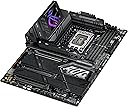
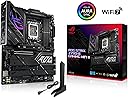
๐ Power your next-gen build with ASUS ROG Strix Z790-E โ where speed meets stability!
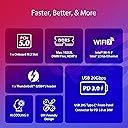
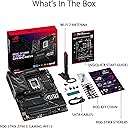
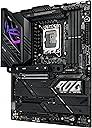
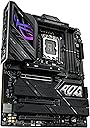
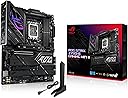
The ASUS ROG Strix Z790-E Gaming WiFi II motherboard is engineered for Intel 12th, 13th, and 14th Gen processors, featuring an 18+1+2 power stage design, PCIe 5.0 support, DDR5 memory compatibility, and advanced cooling solutions. It offers five M.2 slots with dedicated heatsinks, WiFi 7, 2.5Gb LAN, and extensive USB 20Gbps connectivity, making it a premium choice for gamers and professionals seeking high performance and future-ready features.
| Asin | B0CJMQ2S5M |
| Available Memory Slots | 3 |
| Best Sellers Rank | 93,066 in Computers & Accessories (See Top 100 in Computers & Accessories) 796 in Motherboards |
| Brand Name | ASUS |
| Chipset Family | Intel Z790 |
| Chipset Type | Intel Z790 |
| Compatible Devices | Personal Computer |
| Compatible Processors | Intel Core 14th and 13th Gen |
| Cpu Model | Pentium |
| Customer Reviews | 4.4 4.4 out of 5 stars (181) 4.4 out of 5 stars |
| Graphics Card Interface | PCI Express |
| Item Weight | 1.5 Pounds |
| Main Power Connector Type | 24-Pin |
| Manufacturer | ASUS |
| Manufacturer Part Number | ROG STRIX Z790-E GAMING WIFI II |
| Memory Storage Capacity | 192 GB |
| Model Name | ROG STRIX Z790-E GAMING WIFI II |
| Model Number | ROG STRIX Z790-E GAMING WIFI II |
| Number Of Ethernet Ports | 1 |
| Number Of Items | 1 |
| Number Of Packs | 1 |
| Number Of Ports | 16 |
| Platform | Windows |
| Processor Socket | LGA 1700 |
| Ram Memory Maximum Size | 192 GB |
| Ram Memory Technology | DDR5 |
| System Bus Standard Supported | SATA 3 |
| Total Hdmi Port | 2 |
| Total Pcie Ports | 5 |
| Total Sata Ports | 8 |
| Total Usb Ports | 16 |
| Unit Count | 1.0 count |
| Upc | 197105357341 |
| Usb 2 0 | 14 |
User
I'm a grumpy complainer - but - I can't think of anything to say about this board
This motherboard ROCKS. It flies. The blazing fast speed sucks the trail of exhaust smoke out of the room with it's processing capabilities. Something a bit confusing for me is the numbering of the M.2 sockets. The first socket, M2_1, shares the processor lane with the graphics card. If you use a G5 SSD, then the PCIe runs at G4 speed - okay fine - GPUs are G4 anyway. But you would think the very next M.2 socket would be M2_2 but no, it's M2_3. M2_2 is at the bottom of the board near the audio section of the board. Meaning if you're going to use a second SSD, put it in the M2 socket at the bottom of the board (not in the layout order on the Motherboard) in order for it to control it with the Intel core processor as opposed to the Z790 Intel chipset.The quick start guide included is really lame. Make sure to download the manual from Asus before you begin your build.Once the build is up and running - you're going to LOVE the experience! I know that I do!
User
Solid High-Performance Motherboard for Gaming & Productivity
The ASUS ROG Strix Z790-E Gaming WiFi II is a solid choice for high-performance builds. Paired it with an i9-1200k and Corsair Dominator DDR5 RAMโruns flawlessly! PCIe 5.0 support is a huge plus, and the WiFi 6E is super fast. Build quality is top-notch, and setup was smooth. Highly recommend for gamers and power users!
User
calidad de producto de lo mejor
User
Parece funcionar bien
1 semana de uso y todo parece estar en orden
User
Excellent motherboard, but make sure to update BIOS!
A nice update to Asus's STRIX series, future-proofed with WiFi 7, and plenty of USB inputs, with 2x Type C and plenty of USB-A.Some of the newly manufactured versions of these boards come with the Intel chip fix that was released over the summer, but this one came installed with the factory BIOS (v0801) from early in 2024.Before doing any installation, I made sure to flash and update to the latest BIOS (v1801) - Asus makes this super simple with the EZ Flash 3 feature that just lets you plug in your PSU to the 24- and 8-pin connector, then flash with a USB stick.After that, I proceeded to seat my CPU and other components. You could probably get away with booting it with the CPU straight into BIOS, but given Intel's issues the past year, best to do your first boot with the BIOS fix already in place to avoid any damage to the Raptor Lake CPU.Currently running an i7-14000K, works great, board fits perfectly fine into my Corsair 4000D case. Versatile for both work and play.
Trustpilot
3 weeks ago
2 days ago