We remain fully operational. Our teams are working around the clock to ensure your deliveries continue safely.

DOWNLOAD THE APP


Customer Services
Copyright © 2025 Desertcart Holdings Limited
DOWNLOAD THE APP


🚀 Upgrade your speed game — don’t get left behind!
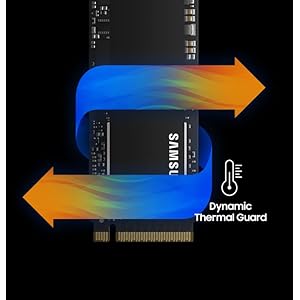
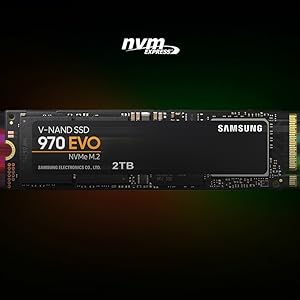
The Samsung 970 EVO 500GB M.2 NVMe SSD leverages cutting-edge V-NAND technology and the Phoenix controller to deliver blazing sequential read/write speeds up to 3,500/2,500MB/s. Designed for professionals and gamers alike, it features dynamic thermal management, AES 256-bit encryption, and seamless software support via Samsung Magician. Its compact M.2 2280 form factor ensures easy installation in modern systems, backed by a 5-year warranty or 600 TBW endurance rating.






| ASIN | B07BN4NJ2J |
| Additional Features | Portable |
| Best Sellers Rank | #235 in Internal Solid State Drives |
| Brand | Samsung |
| Built-In Media | Instruction Manual, Solid State Drive |
| Cache Memory Installed Size | 512 |
| Color | Black/Red |
| Compatible Devices | This drive is compatible with servers and arrays that accept M.2 2280 PCIe drives |
| Connectivity Technology | NVMe |
| Customer Package Type | Standard Packaging |
| Customer Reviews | 4.9 out of 5 stars 37,558 Reviews |
| Data Transfer Rate | 3938 Megabits Per Second |
| Digital Storage Capacity | 500 GB |
| Enclosure Material | 3D Nand |
| Form Factor | 2.5" | M.2(2280) | mSATA |
| Global Trade Identification Number | 00887276261881 |
| Hard Disk Description | Solid State Hard Drive |
| Hard Disk Form Factor | 3.5 Inches |
| Hard Disk Interface | NVMe |
| Hard Disk Rotational Speed | 3500 |
| Hard-Drive Size | 500 GB |
| Hardware Connectivity | Solid State Drive |
| Installation Type | Internal Hard Drive |
| Item Dimensions L x W x Thickness | 3.15"L x 0.87"W x 0.9"Th |
| Item Type Name | Samsung 970 EVO Series - 500GB PCIe NVMe - M.2 Internal SSD (MZ-V7E500BW) |
| Item Weight | 1.92 ounces |
| Manufacturer | Samsung Electronics DAV |
| Media Speed | 2500 megabits_per_second |
| Model Name | 970 EVO |
| Model Number | MZ-V7E500BW |
| Number of Items | 1 |
| Read Speed | 3400 Megabytes Per Second |
| Special Feature | Portable |
| Specific Uses For Product | personal, gaming, business |
| UPC | 887276261881 |
| Warranty Description | 5-Year Limited Warranty |
T**R
Great! Fast!
Figured I'd write a review to maybe help someone. I bought two 1Tb versions of these, had some buyer's remorse, and was really worried about compatibility. The whole 2 lane PCIE 3.0 vs. 4 lane PCIE 3.0 had me spooked in terms of system stability and performance/cost. My first system, a Dell Optiplex 5070, I am so happy to report, is lightning fast with this SDD. The 3060 and 5060's have been reported to have only 2 lane support and Dell's documentation is useless - but user complaints of less than optimal performance on NVME M.2 SDD's are everywhere. Well, Dell must've updated that system because CrystalDiskMark shows the 3,000 MB/s+ of a four lane system. I used the Samsung Data Migration tool to image the OS from Dell included 500GB 7200RPM have drive no problem. But I also have a Dell 7480 (i5) laptop. I just bought it new- the price was good and I needed a compact laptop to carry around. There was no question it is 2 Lane - being older, I didn't even have to guess. So the quandary was, would the Samsung 970 EVO be backward compatible, stable, and the speed worth the additional $70 over a Crucial SATA SDD? The system came with a 128GB SATA M.2 SSD. First of all, transferring the image was pretty hard - and I'm very familiar with imaging hard drives. Many Dell laptops will not see this SSD until the BIOS settings are changed from RAID to AHCI. This is first and foremost otherwise this SDD won't be seen. I've seen this reported with many motherboards. Second, I have a USB to M.2 NVME and a USB to M.2 SATA adapter. (There's only one SSD slot in the laptop so no choice...) Even with the Samsung installed directly in the laptop, the SSD firmware updated, and the Samsung SSD driver installed, Samsung Data Migration will not recognize this drive. I suspect it's the 2-lane thing. And it definitely will not see it in the USB adapter because it see's the adapter controller, not the SSD's. In a nutshell, I resorted to mounting both SDD's in those USB adapters, and plugging them in my Optiplex (another computer), one then the other. I first took and image or the original Dell SATA using Macrium Reflect. Then I plugged in the Samsung and restored the image. This takes some knowledge of Macrium (and a little math) to resize the C: (OS) partition to the new drive. Using a separate computer is the only way I could get this to work. But it worked perfectly. And I transferred all partitions no problem, expanding C: at the same time. As far as it being worth it, I'm getting 1,500 MB/s on the laptop 2 lane. This is still 3X the speed of an M.2 SATA SSD. So Yes! In a nutshell, don't count on the Samsung Data Migration tool. Do load the Samsung SSD driver from their website and install it. Do look in your BIOS to change RAID to AHCI if the computer doesn't see the new SSD in the NVME slot. Macrium Reflect is free and works most of the time. And it is compatible with 2 Lane PCIE 3.0 - if you see 1,500 MB/s Read speeds, that's why.
M**R
500 GB of fast storage on a stick of gum
I love these things. It's hard not to give these drives 5 stars: they are fast, easy to install, don't take up any space, don't require any running of cables, they don't generate any noise, and they are getting more affordable by the day. I purchased this to install the upcoming Red Dead Redemption 2 to really speed up those load times and hopefully provide the best gaming experience. Obviously the game isn't out for a few more days so I will update my review if anything bad happens, which I do no anticipate. I've included a screenshot showing how the 970 Evo stacks up against 3 other storage devices in my PC: 1) another PCIe NVMe stick from Mushkin which my OS is installed on. 2) A more traditional SATA SSD drive which I have some of my most frequently played games on. It's a couple years old at this point, so take into consideration there are faster ones out there. 3) A 3 TB traditional platter based 7200 RPM HDD from Western Digital, for storage purposes. 'CrystalDiskMark' was used for testing. It is not my intention to disparage any other devices or manufacturers with this screenshot. All of the drives perform very well, my system boots up very fast on the Mushkin NVMe, and the games on my SATA SSD load way faster than if they were on a traditional platter HDD by multiple factors. I just want to show how the Samsung 970 Evo compares to other hard drive technology. A couple side notes. My motherboard either didn't include, or I misplaced, the screws needed to secure this drive to the motherboard (it may have only came with one set of screws, which I used to install my other NVMe at build time), so make sure you have the required screws before you attempt to install it. I ended up having to order a set of screws after I went through the hassle of unplugging everything, taking the side panel off, etc. Finally, as with all storage drives, you lose some capacity after it's configured for storage in the OS. In this case I lost 35 GB, so it became a 465 GB capacity.
S**C
Great for OS installation, fast
I upgraded my system with the SAMSUNG 970 EVO 1TB SSD, and I couldn't be more pleased with the performance! This M.2 NVMe drive offers lightning-fast read and write speeds, significantly reducing boot times and loading times for applications and games. The installation process was straightforward, thanks to its compact design. The 970 EVO fits perfectly into my motherboard's M.2 slot, making for a clean build without extra cables. Once installed, I noticed an immediate improvement in overall system responsiveness and multitasking capabilities.
T**O
Nice Improvement
The drive works very well and is much faster than the hard disk I was using. Everything about my system seems faster since installing this drive. I've heard you should keep 25 percent of an SSD/NVME drive empty for best performance and lifespan so keep that in mind when determining what capacity drive you want. It is not designed to have a heat sink installed. Some info for people who have no experience with NVME type drive setup/install in place of your C drive aka windows 10 boot disk. 1. this drive does not come with the screw to hold it in place. It is a very tiny screw and they can be different for every brand of computer so make sure you find a screw to fit that NVME standoff on your motherboard. My HP Pavilion is 3 years old and has no screw in the hole so I got one from a friend with an extra on his board. If you don't have one you may have to order an NVME screw kit. 2. There are 3 or 4 different downloads you need to do from the Samsung website. A. Samsung Magician app - info and diagnostics for the new drive and very basic info on all drives in system. B. Samsung Data Migration app - use to clone your C drive (Windows 10 boot drive) so you can boot off the new SSD drive. You most likely want this because it will greatly speed up most everything you do. The cloning is simple but do not do it until you have installed the latest firmware and replace the windows 10 default NVME driver with the Samsung one. C. firmware update that would be installed to the new drive - my EVO 970 had the latest firmware and did not need this. D. Windows Driver - you need this and Samsung wants you to install it before doing any operations on the drive. So you would 1. make sure you have the screw to hold the NVME drive in place. 2. physically install the drive 3. start up your computer and press X and Windows key and select Disk Management. You should see the new drive as unallocated space - initialize it as GPT (not MBR). You can format as NTFS also if you want - I did but I think the clone software might do all that anyway. Now install the Samsung driver, magician and data migration apps and also update your drive's firmware if needed. Restart and go into the Magician software and to the second window - I think its drive properties or similar and it should list the Samsung NVME driver is in use - good to verify. Next go into the data migration and clone your old hard disk onto the new drive - how long it takes depends on how much space you have used. Mine took about half an hour or so for about 200 GB. Once that is done then you want to shut down, go into your computer and physically unplug the data cable from you old hard disk. Turn the computer on and go into the bios setup and ensure the boot order shows you new NVME as number one. Now your PC should load windows from the new M.2 NVME drive. Note: Because one is a clone, now your new drive and old one have the same ID. Not good. If both drives are plugged in it will boot from the old hdd regardless of bios settings. Fix this by: 1. Shut down and connect the data cable back to your old HDD. Boot up - it will boot from hdd, not m.2. Use X + windows key to run command prompt as administrator. type: diskpart then type: list disk - identify your new drives number and type: select (space) the drive number then type: online then type: uniqueid then type: exit. Reboot, go into bios, disable boot security and enable legacy boot. Make sure the M.2 is the first in the boot order. That should be all you need to do to keep your old drive and boot from the new one. You can delete everything off your old hard disk if you want but you don't have to - you can leave it as a bootable windows disk. That's what I did. For anyone with an HP Pavilion 570-P0x0 from 2017 or later with Lubin motherboard I can tell you that this drive will work for you. Also, I did not have to update my computer bios for this to work. BTW - this drive is about 20 times faster than the drive it replaced. Apps now pop onto the screen almost instantly, even web pages seem to load a lot faster.
A**Y
Good
Good Product , very efficient NVME Great for Value of money at the time
O**R
Exceptional Performance and Reliability - A True Powerhouse!
I recently upgraded my computer's storage with the Samsung 970 EVO SSD, and I must say it has exceeded all my expectations. This drive is an absolute powerhouse when it comes to performance and reliability. First and foremost, the speed of the 970 EVO is mind-blowing. From the moment I installed it, I noticed a significant improvement in my system's responsiveness. Boot times have been reduced to a fraction of what they used to be, and applications launch almost instantly. The read and write speeds are simply outstanding, making data transfer a breeze. Whether I'm gaming, editing videos, or working on demanding projects, this SSD handles everything with ease. The durability and reliability of the 970 EVO are also worth praising. Samsung's V-NAND technology ensures exceptional endurance, allowing me to perform intensive tasks without worrying about drive failure. I appreciate the peace of mind knowing that my valuable data is stored securely. One aspect I particularly admire about the 970 EVO is its advanced thermal management. Even during extended periods of heavy usage, the drive remains cool and maintains optimal performance. This feature has contributed to the overall longevity of the SSD and further enhances its reliability. Additionally, the encryption technology employed by Samsung ensures that my data is protected against unauthorized access. It's reassuring to have this level of security for my sensitive files and personal information. The installation process was straightforward, thanks to the included software and easy-to-follow instructions. Samsung's user-friendly interface made it simple to migrate my data from my previous drive without any hassle. In terms of value for money, the 970 EVO is definitely worth every penny. While it may be priced at a premium compared to traditional hard drives, the performance and reliability it delivers justify the investment. This SSD has breathed new life into my computer and has undoubtedly elevated my computing experience to new heights.
G**R
Breathes new life in to an older laptop
Over the past year I had gotten used to a level of performance from the new desktop I built that my old Dell XPS 15 9550 could not quite match. While overall that's not unexpected, one of the areas of opportunity I noticed was that the almost 5.5 year old laptop couldn't open multiple applications as quickly and in general felt a bit less responsive when opening programs. After running some tests I determined there was enough of a delta in performance between the NVMe in my older laptop and the NVMe that I had installed in my desktop to likely account for this. I didn't really need more space but I decided to try dropping one of these SSDs in to the laptop to see if it addressed the performance difference. Installation: After cloning the existing drive and swapping them I was quickly back up and running. M.2 drives are pretty easy to install, and this one is no different. I transferred the thermal pad from the old drive to the new one and closed the machine up and was able to boot it back up right away like nothing had happened. Performance: The performance improvement was definitely noticeable. While on paper not as fast as the drive in my desktop, the actual experience opening applications or starting things up in Windows after a fresh boot was noticeably better, shaving a second her or there off things that definitely could be a bit slower before. I timed things and while by most subjective measures the laptop wasn't *slow* before, it was shaving a half second or second here or there off opening things. One area I definitely noticed improvements was in opening a handful of applications immediately after bootup. Before, they would take a couple seconds before the loading screen or application would appear and the full loading of each application would take a few more seconds. Now, it's able to pop up the first sign of each loading application in less than half a second and they all open much faster as though it's better able to read their data simultaneously. Conclusion: All in all, I got the improvement I was hoping for without breaking the bank. The extra storage is nice (the laptop's original SSD was 256GB) but not really necessary, however I'm not complaining about it for the money. Samsung continues to be my go-to for SSDs if I don't want to spend time researching the best of what's out there, and if they're on sale or offering a competitive $/GB, you can rarely go wrong with them.
A**S
Insanely fast, easy to install, and overall high performing.
I purchased this item a little over 2 months ago, intending to install it in my system. I already had a 500GB SATA SSD installed, and this was installed to supplement that drive. I have not installed my Operating System on it yet, though I do plan to do that. Here's some things I've noticed since unpackaging my SSD. The first is that this thing is SUPER small. But the size definitely helps make this install much easier. If you have multiple M.2 slots on your motherboard, I recommend making sure you have one that is small enough to accommodate this item. My motherboard has 2 different M.2 slot sizes, and this card is definitely made for the smaller M.2. Compared to my SATA SSD, this drive was about just as difficult to install. With the SATA SSD, I had to attach a power cable to it, as well as the cable that attached to the motherboard, as well as ensuring it was secure in a chassis. With an M.2 drive, this isn't necessary. You unscrew the tiny screw at the end of the M.2 slot, insert the card at roughly a 30 degree angle, and gently push it down and screw it into place. I say it's about as difficult because the screw is small and can be hard to get threaded again once it's removed, especially with the added complexity of having the M.2 drive in there as well. However, it's not anything that would take much effort at all. I knew what I wanted to use this SSD for, so I opted for the 1TB drive. This is more than enough space for what I need, and the drive is insanely fast. I have several games loaded on it, including Red Dead Redemption II, Grand Theft Auto V, and Tom Clancy's Rainbow Six Siege. These are frequently played for me, and I figured installing them on a drive like my new NVMe SSD, I'd see some performance improvements. I absolutely did. Rainbow Six appears to load instantly every time I try the single player options (Training Grounds), and I remember hearing the other day as I loaded into a competitive match "How is this guy in already?" Red Dead Redemption II does still take some time to load, but considering the loading the game needs to do, it's forgivable considering it is still much faster than my PS4 Pro when loading up the game. GTAV is in a similar boat, but I'd argue that game has an even bigger load time boost than Red Dead. The performance of this drive should make any PC player happy. Overall, this is a fantastic product, and I would highly recommend it to anyone who is looking to give their PC an extra speed advantage.
Trustpilot
1 month ago
2 weeks ago