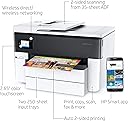
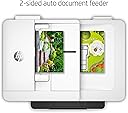
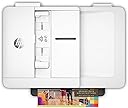
🖨️ Elevate your office game with wide-format power and smart wireless freedom!
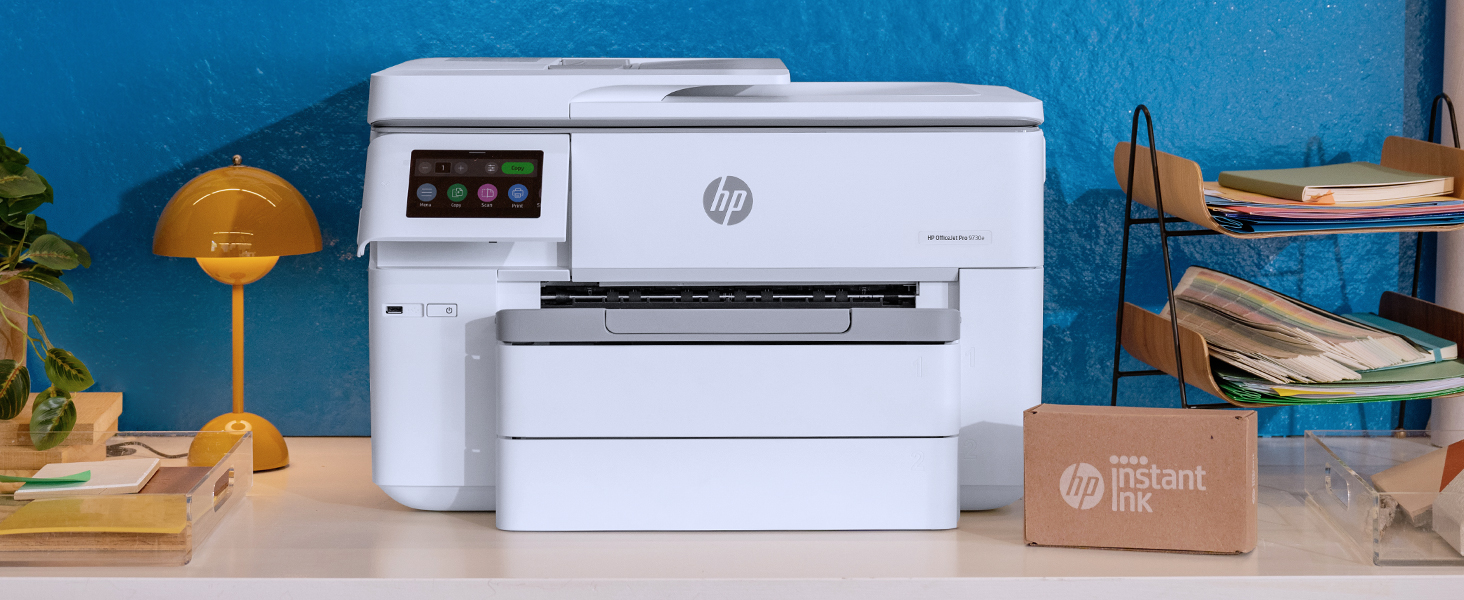
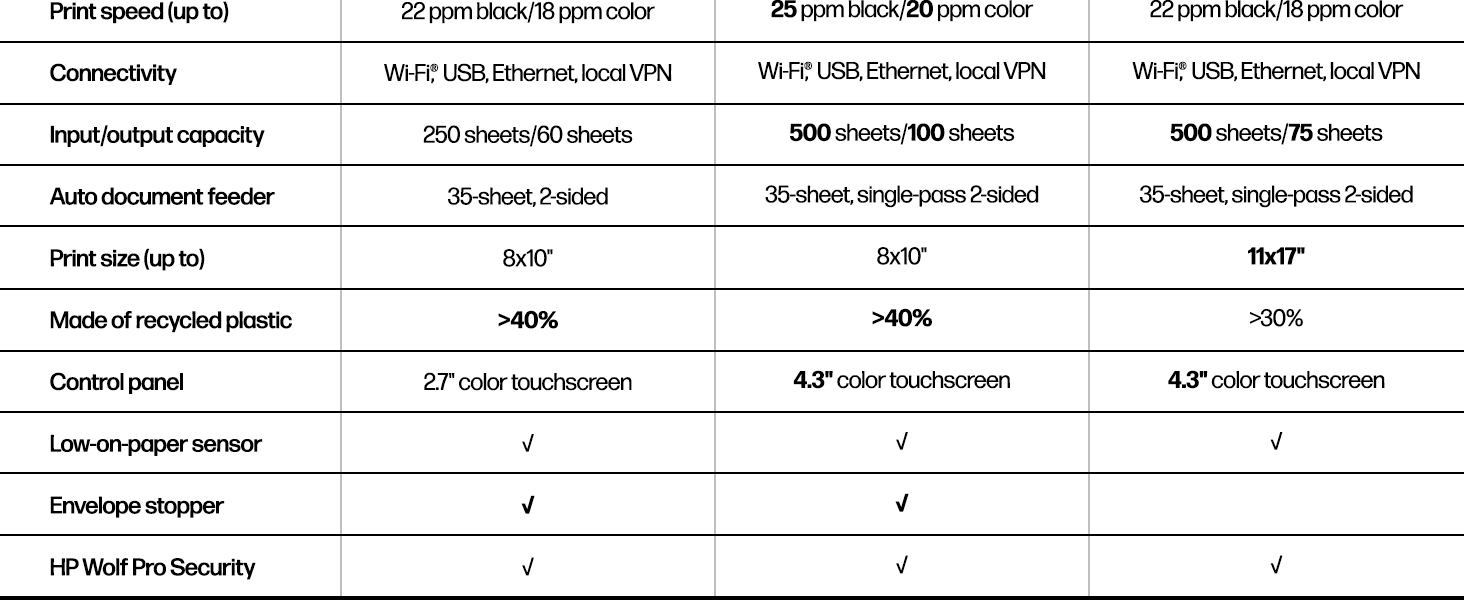
The HP OfficeJet Pro 7740 is a versatile wide-format all-in-one inkjet printer designed for small businesses and professionals. It supports wireless printing, duplex scanning and printing, and prints up to 11x17 inches with vibrant color at speeds up to 22 pages per minute. With dual 250-sheet trays and HP Smart app integration, it offers high-volume efficiency and seamless mobile connectivity, all while reducing printing costs by up to 50% compared to color lasers.


| B&W Pages per Minute | 34 ppm |
| Color Pages per Minute | 34 ppm |
| Total USB 2.0 Ports | 1 |
| Total Usb Ports | 1 |
| Hardware Connectivity | USB 2.0 |
| Connectivity Technology | wired, wireless |
| Resolution | 1200 x 1200 |
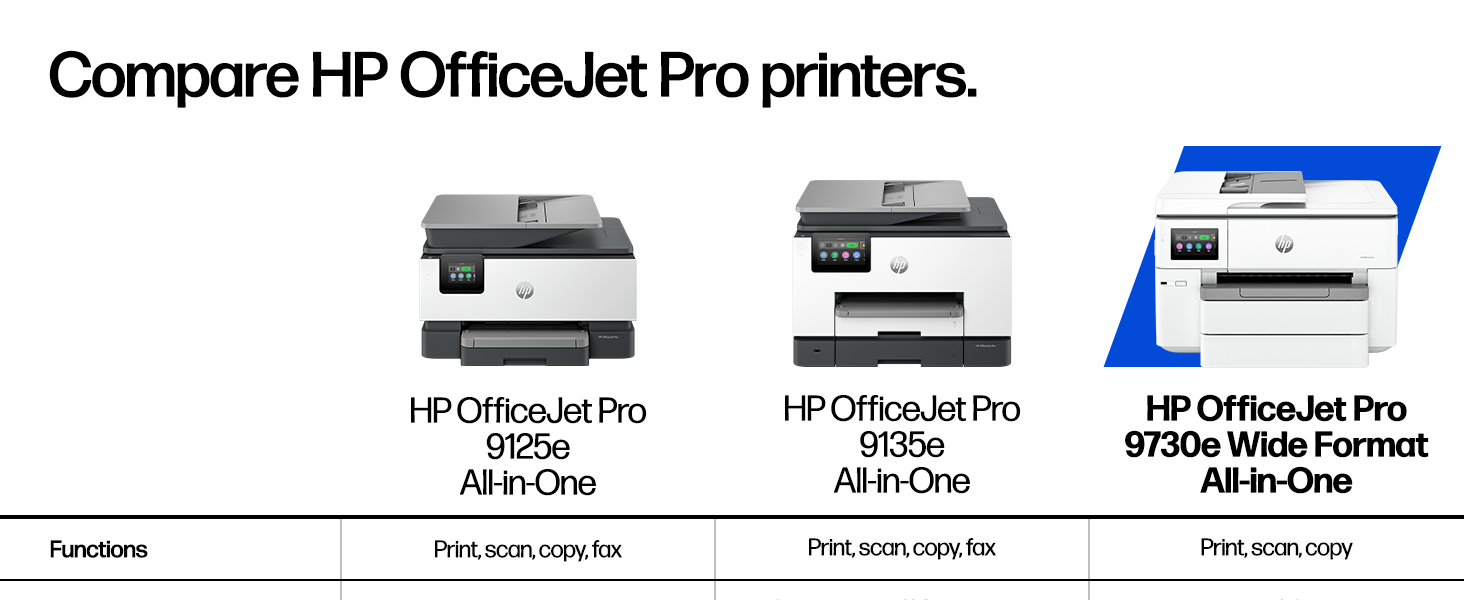
| Additional Printer Functions | Copy, Scan, Fax |
| Warranty Type | Limited warranty |
| Processor Count | 1 |
| Control Method | Voice |
| Controller Type | Amazon Alexa |
| Print media | Paper (plain) |
| Scanner Type | Sheetfed |
| Maximum Copy Speed Black and White | 22 ppm |
| Display Type | LCD or LED or OLED |
| Compatible Devices | Smartphones, PC, Laptops |
| Printer Type | Inkjet |
| Additional Features | ENERGY STAR Certified, Auto Document Feeder, Touch Screen, Auto Duplexing, Double Sided Scanning |
| Printer Output Type | Color |
| Item Weight | 42.9 Pounds |
| Item Dimensions D x W x H | 18.38"D x 23"W x 15.1"H |
| Paper Size | 3 x 5 to 11.7 x 17, Letter, Legal, Executive, Statement, Envelope |
| Output sheet capacity | 75 hojas |
| Maximum Sheet Capacity | 500 |
| Media Size Maximum | 11 x 17 inch |
| Wattage | 1 watts |
| Is Electric | Yes |
| Power Consumption | 37 Watts |
| Duplex | Automatic |
| Dual-sided printing | Yes |
| Color | White/Black |
J**R
GREAT for ledger sized paper!!
I use this printer for our home printer and for working with my watercolor paintings. Jim addition to printing remail, invoices, instructions, menus and the like, I often print and SCAN prints that are ledger sized (that's 11"x17" sized paper). The scan bad for that sized printer makes this unit a monster! I have room in my office, so it's not a problem. But it's a presence!! The Good Points: I found the setup quite ready. It connected to my network like a champ. It connected to our Android phones, our iPad, and my Raspberry Pi (Debian based Linux .. via CUPS) systems without any problem. Print and Scan work wonderfully. Copy can do double sided to double sided output without any problem. The printer comes with two paper trays. Each can hold you ledger sized paper. I have the top main tray filled with letter sided paper and the bottom treat filled with ledger paper. The printer can automatically select the appropriate tray based on the document size you print. It can also automatically fit the document to the paper. So if you print a letter into the ledger sized paper the document is increased in size to fit there paper. That is a seeing that can be adjusted to fit your needs. It has quite extensive FAX capabilities. Though I looked at them, I do not use this as A FAX system, though it's good to know it's an option. It connected via Google to "the cloud". I can print to this printer, even when I'm not using my home WiFi. I often use this feature when I'm away from my home network. HP includes an e Print feature, where I can email a document to the printer. And if course, this and the cloud printing feature can be locked down so only I can use these features to my printer. But I can add authorized users. So I can allow my son in Europe to print into my printer. Cool! HP includes WiFi-Direct printing. That is, I can print directly from my phone without paying through the router. I don't use this feature. However, I looked at it and found it sounds, usable and can be secured. The print cartridges are reasonably priced. Not the best, but not bad. I use the XL version of the cartridges. They cost less per sheet. Also there are four ink cartridges. Thus, if I run out of Cyan, I only need to purchase Cyan. The system can isometrically order ink, if the ink is marked as low. I personally prefer to order on my own. But it's a good feature. The online web management menus are very helpful. The web interface includes management, maintenance, and reporting. It's quite extensive. The Downside: Extending a print tray to ledger sized paper takes some time and effort. It's not very obvious. But keep at it. It does work. The phone based scan only does single sided scanning. It can copy double to double. It should be able to scan to my phone double to double. Overall: It's a great printer. It's sounds intimidating. But once you set it, you can forget it. My wife never printed to the old printer. But she prints to this all the time. The difference? Once you set the options, you don't have to fiddle with options. It's an easy printer to use and live with. I highly recommend this printer if you need to print and scan ledger sized paper.
T**R
Piece of Junk
There are three things I dislike about this printer. (1) I keep getting an error message that the print heads are "missing or misaligned." They are definitely not missing, and frequently when I try to run the tool to align them, I get the same error message, and, because the printer thinks the print heads are missing, the alignment fails. I have to cycle the power and run the alignment program several times to get the printer to think it has print heads. (2) Pages print too far down the page. There is a lot of white space at the top of the page and none at the bottom; in fact, sometimes the content is cut off at the bottom. I have checked the applications settings and the margins are set correctly. There does not appear to be any way to adjust the printer so that documents print with the margins set in the applications. (3) The scanner has trouble identifying where pages end if there is a lot of white space on the page or if the text is really small. I recently scanned a 10 page job that came out as 15 pages because the printer broke up several of the pages into multiple pages. Sometimes scans come out with kind of a grey background for no apparent reason. Also, the printer is huge. I probably should have realized that, because the trays will accommodate 11x17 ledger paper, which is kind of a cool feature although I don't have a present need for it. Things I like about it: (1) The sheet-feed for the scanner. I bought it because I needed to scan lots of multi-page documents. (2) Its ability to print and scan double-sided documents in black and white or in color. (3) Its price. It is cheap compared to other printers with similar features, but on the other hand it is also an example of getting what you pay for.
A**.
A Decent Printer for the Money
This HP 7740 replaced a several year-old HP 8710 (which is still running fine), but I needed to be able to print on larger paper - 11x17 (for technical drawings), and the 7740 does that. It also takes the same 952XL ink cartridges as the old 8710, so that's another big plus for me. NOTE: This printer (right out of the box) will accept and run "aftermarket" (non-genuine) HP ink cartridges (that's what I'm using), as does my 8710. HOWEVER, do NOT do the firmware updates if the printer prompts you to. That way, you can continue to use the aftermarket cartridges. DO NOT opt for "automatic updates" during the printer setup. Once the printer was unboxed, the set-up was very easy. Ran the power cable (to my UPS), and an Ethernet cable, for local network printing. Powered it up, installed the ink cartridges, and the unit went through its "maintenance" routine (first run), and then was ready to go. I initially had to install the genuine HP cartridges, but after its initial "maintenance routine", I installed the larger generic XL ink cartridges, which work fine. I had a bit of trouble getting my office PC to load/install the Windows HP print driver (from the HP download site), but once that was done, the printer is working perfectly. Overall, it's a very nice printer. Not sure why there are several negative reviews... It is a bit big (physical size)... However, it does print quite well - AND - it will accept & print 11x17 tabloid size paper, so I can deal with the size.
A**A
Impressive Performance for a Sub $200 Printer
Unboxing: First off, the box is HUGE. It was well protected, and was a struggle to remove from the box. I can see why people recommend this as a two-person job. It's heavy (a little over 40lbs), but not unmanageable. Setup: Some of the reviews have indicated difficulty with the setup. I will say HP makes it a bit more convoluted than it needs to be mainly because of their proprietary software, etc. After unpacking and removing all the protective tape, installing the included cartridges was fairly straight forward, although initially I got an error on the touch screen saying at least one cartridge was installed improperly or defective (but it didn't tell me which one). I went back through, and the second try did the trick. Connecting it to the Wi-Fi network was simple enough via the touch screen however. That's the point it gets a bit convoluted, and you have to login to a special HP website to register it and download software, updates, etc. Total time spent was probably about 15 min. If you're not comfortable with this sort of thing, I can see how it might be a challenge. Performance: I've only done a limited amount of printing thus far, but the main reason for purchasing this particular model was the ability to print 11x17. After the setup process, this was what I tried first. After filling tray #2 withe 11x17, you need to use the touch screen to let the printer know that's the size you added, otherwise you'll run into a problem printing. The printing is relatively quick on 11x17, and the color quality is very good. There was no banding, and the paper fed through evenly. I only need to print 11x17 infrequently, but when I do it's nice to be able to load the entire tray with it and know it will feed through without any issue (at least thus far). This printer replaced a 5+ year old Brother that also did 11x17, but the ability to just leave it in a tray and not have to feed it through the back one piece at a time is fantastic. I've yet to find out how long a life I can expect out of a set of cartridges, but if it's anything extraordinarily short or long, I'll update this review. It's Ginormous: I felt the need to add this. As I said, I replaced a 5+ year old Brother printer that also did 11x17 (one sheet at a time fed through the back) which worked pretty well up until the past few months (though 11x17 printer was always a pain, as you'd have to feed it through by hand and it often wouldn't feed through straight and would require multiple attempts). When I saw the photo of the printer, I could tell it was taller than my old Brother printer, but I had no concept of just how much larger the footprint is. It's GIGANTIC. If you don't have a dedicated space for this beast (forget about a shelf... it's too heavy and large, and it will take up the bulk of an average size desktop), you'll be out of luck. I have it set on top of a tall steel filing cabinet, and it not only takes up the entire top but requires extra space from the overhang of the 11x17 paper tray and extension that hold sheets after the are spit out of the printer. It's unfortunate, but this could be a deal breaker for a lot of buyers. That's unfortunate, because it seems like even with the 11x17 tray and printing capability, HP could have slimmed it down a bit. Other than the extreme size-- which won't be a problem for everyone-- the only other negative is the small dimensions of the touch screen. There's definitely room for a larger screen, and you have to take your time pushing the icons and keypad to get it right. I'm happy with this purchase and so far would recommend it. But be advised that it might simply be too massive for a small office space and will likely require a dedicated (and sturdy) piece of furniture to accommodate it.
S**N
"Printer Offline" Is Usually NOT a Problem With the PRINTER
I'm (re)writing this review in the hope that it may help some of the folks out there who have struggled with the "Printer is offline" error message in Windows without much success. One post I ran across in an online support group said he had tried three different 7740 units and all gave the same error message and that HP tech support was useless. I'm sure that's probably true. I struggled with the same issue after a new wireless installation and it came close to driving me nuts. I seriously thought about sending the printer back, but the fact that the online poster had tried three different units gave me pause. The likelihood of three identical machines all being hardware defective in the same exact way is pretty darn small. If you're lucky, the problem may be as simple as unchecking the "Use printer offline" box. Go to "Control Panel," "Devices and Printers," right click the HP 7740, click "See what's printing," then click "Printers" at the top of the next window and uncheck "Use Printer Offline." But if you're unlucky, like I was, "Use Printer Offline" won't be checked anyway. Don't panic. While I offer no guarantees that what I've written below will help and take no responsibility for any damage you may do to your setup trying to follow my advice, it may again be helpful for some people's situations, even for folks with a different printer. Let’s think about what “Printer Offline” really means. As many have said it doesn’t mean the printer is “off” or won’t print a test page from the control screen. What it means is that Windows can’t find it. There are at least two possible reasons for this. One is that you have a driver conflict with a different printer. You may not even think you have another printer installed, but because of how Windows operates you may. Another cause may be that Windows can’t find your printer where it thinks it should be because of how your router is assigning your printer’s wireless (IP) address. I suspect this is an even more common problem but has a fairly straightforward though involved solution. The LEAST likely cause is a hardware defect. As the example above shows, the likelihood that three identical units are all defective in the same way is practically nil. It is almost always a problem with Windows “finding” the printer, that is to say, software communication issues, not with the printer itself. OK – apologies for the length of this in advance. In the case of a driver conflict – which I had, unbeknownst to me – I found the conflict when I right clicked on "Printer Properties" in "Devices and Printers (in Control Panel)," and then clicked the "Ports" tab. There to my surprise was an HP driver installed for the HP Envy, even though I'd never had the Envy connected to this computer. (It was left over from cloning the boot drive from another OS.) The 7740 was listed as the default printer, but the Envy driver had the TCP/IP port and was “online.” The Envy seemed to be confusing the OS into thinking that the Envy should be online and the 7740 shouldn't be. The immediate solution there was to delete ALL the printer drivers (including the 7740) from the machine. (You can't delete MS XPS or Adobe PDF but that's OK.) You can try just deleting every printer listed in "Devices and Printers" by right clicking them and choosing "Remove Device," but you may need to use an uninstall program or go into the Windows Registry - which is NOT for novices. (Basically DON'T if you don't know exactly what you're doing and aren't prepared to reinstall your whole OS. Fair warning!) Deleting drivers isn't always easy, but again, the error message is probably not caused by a problem with the 7740 hardware itself. As other sites describe, I then manually reset the 7740 unit by unplugging it while it was still powered on, waiting 60 seconds, and plugging it in again. It powered on automatically. Once I did that, I reinstalled the 7740 drivers MANUALLY in "Devices and Printers" using the "Add Printer" button. (It's usually the best way to do a wireless printer install anyway.) The OS found the 7740 using the TCP/IP port (the TCP/IP connection - always best), and it all worked fine – for a time. That’s when I discovered the second likely cause for the “Printer Offline” error message. Even though I no longer had driver conflicts, Windows still often lost track of the wireless address (the IP address) of the 7740. Why would Windows do that? Let me explain. Modern routers assign IP addresses to any device that connects to your wireless network automatically by a protocol called DCHP. Before DCHP, routers assigned addresses the way you get a social security number: each person gets her own unique number and no one else has it. Good enough. But because there can be so many devices connected to a home network, and also because as devices turn off and on they disconnect from and then reconnect to the network, DCHP will REUSE addresses from a disconnected device for a NEW device that connects (or an old device that reconnects), even if a device that reconnects had a different address before. Or it may get an entirely new address. Whatever. This means that when your printer “goes to sleep” to save energy and thus disconnects from the network, when you go to wake it up to print something later, the DCHP router will give it a DIFFERENT IP address from the one it first had, but Windows, bless it, will still try to find the printer at its old IP address. And if it can’t, which it often can’t, Windows will conclude that your printer is “offline” and refuse your new print job. It’s the equivalent of the Post Office “Moved. No Forwarding Address.” (DCHP is fine for most devices but for whatever reason doesn’t play well with many printers.) Again, this isn’t the printer’s fault, though it is to some degree the manufacturer’s fault, since they don’t tell you how hard it can be to make a solid wifi connection for a printer to a network. “Just put your install CD in your CD drive and…” Yeah no. So how to fix? Well it can be intense but it’s been working for me for several days now, fingers crossed. First, go to your router’s admin program. It will have an address like 192.168.0.1 (Read the router manual.) Type the address into your browser (the periods are important). You’ll need the userid and password for the router, something like “admin” “admin1” depending on model. Check the manual. Go into your router IP address settings – maybe on a tab like "LAN settings" (manual will show). This tab will show the router’s starting IP address setting – the numerically lowest address the router will assign to a device – and the highest IP address setting – the highest numerical address a router will assign. These will typically be something like 192.168.0.2 and 192.168.0.255. See photo. Change the last three digits for the highest setting to any lower number – for simplicity’s sake say 250. Apply the change. Leave the router admin window open for now. Go to your printer’s settings screen on the 7740 and locate the printer IP address, again something like 192.168.0.xxx. Type that into a new window in your browser too. You’ll then get the 7740 internal settings screen in your browser window. Go to Networking, Wireless, and IPv4 addresses. Deselect “Automatic IP” or “DCHP” and select “Manual IP.” In the actual address space type in the first three segments of the numerical sequence you typed above, and then “251 (or 252 or 3 or 4)” for the last segment. See photo. Hit Apply/Save. Also, on the “Network” tab choose “Network Protocols.” “Check IPV4 Only” and “Apply.” Ok. A few more steps. Go back to your router window to the LAN settings page. If you’re lucky, your router will have a setting that lets you MANUALLY assign an IP address to a device. See photo. (Can’t help you here if you’re not.) Get your MAC address for your printer from the printer settings “General Summary” page. See photo. Type that address into the “New Device” or whatever space on your router manual assignment page. The IP address should come up automatically. See photo. Exit your router setup. Go back to your 7740 settings. Go to “Network” “Advanced Settings” “Microsoft Web Services.” Uncheck everything. See photo. Go back to HP 7740 in “Devices and Printers” and delete it by right clicking “Remove device.” Next go to “Add Printer” on the “Devices and Printer” page on the upper bar, and choose “Add network printer.” The wizard will search and should find the 7740 at the IP address you just assigned it, 192.168.0.251 or you can enter it manually. (Remember, use the first three segments that your printer settings panel says, not this example.) Go with “Use the current driver” or you may need to select the manufacturer and then the specific printer. No worries. When you get to “Print Test Page,” click it. Your page should print, your printer now has a PERMANENT IP address so Windows should never lose track of it again and thus should never say it is “Offline.” The reason this is so involved is why printer manufacturers don’t want to tell you to do all this to install a wifi printer. And in many cases they don’t need to. But in other cases they do. This is also called “setting a static IP address.” There are simpler procedures on the web but they didn’t work for me. “Howtogeek.com” and “linerarthoughts.co.uk” are the main sources if you run into difficulties. Again, when so many people are having the same problem it usually isn’t the hardware. Hope this helps. Please comment if you find mistakes. Best of luck!
J**A
HP 7740 printer works for me!
First of all I purchased this an open box item in January 2019 which means that someone returned it and I purchased for $50 less. Thank you!!! Also, it came without the original box, but Amazon was kind enough to supply the plug, and some instructions. The printer works fine as I only print mostly in black and white but not photos. I have 2 other HP printers that I use for photos as those are part of the HP Instant Ink program. I say that is a fantastic program and a great savings since I only use them to print 4x6, 5x7 or whole page photos. Super!!!! Anyhow, my wife uses it to print on the large 11x17 paper for work since they want paper posted on a wall (she works for a school - so outdated). She prints some pages every month. It works for her so I am happy that she is happy. The Initial setup was taxing since whoever setup the printer disabled the wifi. I had to download HP Smart on my PC in order to find the correct settings for the printer. I did an initial reset on the printer itself but if I did not download the software I would have never been able to enable wifi and other settings that I needed. The HP installation guide helped somewhat but not very much to point me to the correct path. Also, I had to setup a login and password to the printer as well. The printer is very heavy and you will need to people to move it around. Also, you will need to supply your own Ethernet cable if you are going to set it up using that way. For now it is working as needed. If you want to print on the larger 11x17 paper, then on the HP settings you need to look for Tabloid in order to print on the larger paper. The printer does print on both sides so that can easily be done as well. Even though the initial setup was a little time consuming, the printer is working and I did receive standard print cartridges (952) for every single color including black. I think it is a great printer and it does print jobs quickly. This printer is not part of the HP instant ink program just for your information.
M**D
Worst printer I ever bought - Returned!
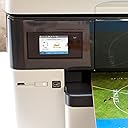
There were pretty much nothing but unpleasant surprises with this printer. The installation was a nightmare. HP wants the user to install over the web. Fine, except it cannot find the installation software to download. I then used the included optical media to install the printer drivers and software. While I could ping the printer on the network, access the printer's internal web server and print a test page from there, it wouldn't print a test page from Windows 10 nor from Word. So, I uninstalled everything and found the installation software on HP's web site. It still would not print. After hours of wasted time and research, I found an obscure article that said the user needs to change the security settings on the Windows temp file. I did that and it printed. Finally. I've set up at least 50 printers in my career. No other printer I've ever seen, including the other three HP printers I own have this problem. Then, setting up the fax, it told me that I have the wrong telephone cable. What? It is a standard phone cable, with an RJ-11 jack on each end. It turns out that I can actually fax just fine - the software is messed up. Loading 11 x 17 paper requires the user to expand the paper tray and when inserted, it sticks out a full three inches - HP doesn't show that in any of its product literature, of course, because it looks terrible and lets dust into the tray. The LED touch screen is tiny, under 3 inches diagonally and difficult to use because everything is so small. There is plenty of room for a decent sized screen. The 8620 printer has a much larger screen and is very usable. The lid for the scanner is so thin and flimsy that I think it is broken every time I lift it. The product basically works, but is just horrible to use. I really hate it and am not sure whether I will keep it or not. Updated review. I tried to use the printer's scheduling firmware to turn it off at night on schedule, or after X hours of non-usage. The printer put out an error message that a telephone cord is attached to the printer and it would not accept faxes if it is powered off. Duh. It wouldn't print or copy either it if it powered off. I tried to contact HP support. They only offered Chat or Tweet. After the usual five minute delays between each question and having to repeat everything I wrote, because the bot or person simply puts "I understand that you ..., is that correct?" 30 minutes went by with nothing to show for it. I said that I need to speak with a person. The agent gave me a phone number which told me to go back to the web site. Eventually, after many attempts, I finally got through to a support person who said that there is no way to make the printer power down using the built-in features, if there is a phone line attached. That did it. I returned the printer to Amazon. HP's support, as bad as it was, since the spin-off, is now even worse, and their products, as bad as they were, are now abysmally poor quality. I feel lucky to have such a bad experience right away, so that I could get my money back. The two "premium" laptops I bought from HP both had hinges break right after the warranty expired. I doubt that I will ever buy anything from HP again.
B**V
Great printer and we like it!
Have had the printer now for about a month. It is a really dependable printer and we like it. Does everything we like. So far we have only done printing and scanning with no issues from either. Some of the paper settings are missing from having an older HP printer. Was wanting to print on "card stock" and that setting isn't available. The only substitute setting is "heavy paper". I do miss the special feed port on my old printer that can handle all sorts of sizes of media. This printer, you just have to empty out the tray and place your media accordingly. Duplex printing is very fast. I like that. So far, no complaints. It is a great printer (If you do buy this printer, it comes wrapped in a plastic bag with handles. Don't cut them! they are there to assist in lifting the printer out of the box!)
Trustpilot
1 day ago
2 weeks ago