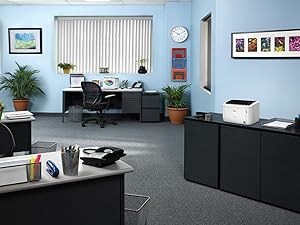
🖨️ Compact power, wireless freedom—print smarter, not harder.
The Canon imageCLASS LBP6030w is a monochrome laser printer designed for home and small office use, offering fast 19 ppm print speeds, wireless connectivity, and a compact design. It supports up to 150 sheets of paper, uses energy-efficient technology consuming less than 2 watts in standby, and comes with a 1-year limited warranty. Ideal for professionals seeking reliable, space-saving printing with genuine Canon toner delivering up to 1,600 pages.


| ASIN | B00K5UZO0Q |
| Additional Printer Functions | Print Only |
| B&W Pages per Minute | 19 ppm |
| Best Sellers Rank | #7,692 in Office Products ( See Top 100 in Office Products ) #22 in Laser Computer Printers |
| Brand | Canon |
| Built-In Media | imageClass LBP6030W Wireless Laser Printer |
| Color | White |
| Color Depth | 1 bpp |
| Color Pages per Minute | 19 |
| Compatible Cartridge | Canon Genuine Toner 125 (1,600 page yield) |
| Compatible Devices | Laptops |
| Connectivity Technology | Wi-Fi |
| Control Method | App |
| Controller Type | Android |
| Customer Reviews | 3.8 out of 5 stars 4,046 Reviews |
| Display Type | LCD |
| Dual-sided printing | No |
| Duplex | No |
| EU Spare Part Availability Duration | 1 Years |
| Global Trade Identification Number | 00013803217711 |
| Hardware Interface | USB, USB 2.0 |
| Initial Page Print Time | 8 seconds |
| Ink Color | Black |
| Is Electric | Yes |
| Item Dimensions D x W x H | 9.8"D x 14.3"W x 7.8"H |
| Item Type Name | Laser Printer |
| Item Weight | 11 Pounds |
| Manufacturer | Canon, Inc |
| Maximum Copies Per Run | 100 |
| Maximum Copy Resolution Black and White | 600 x 600 dpi |
| Maximum Copy Speed Black and White | 19 ppm |
| Maximum Media Size | 8.5 x 14 inch |
| Maximum Print Resolution Black and White | 600 dpi |
| Maximum Sheet Capacity | 150 |
| Maximum print Resolution Color | 600 x 600 dpi |
| Model Name | Canon imageCLASS |
| Model Number | LBP6030W |
| Model Series | LBP6030 |
| Number of Licenses | 1 |
| Number of Trays | 1 |
| Other Special Features of the Product | wireless,compact |
| Output sheet capacity | 100 |
| Paper Size | 8.5 x 11 |
| Power Consumption | 2 Watts |
| Print media | Paper (plain) |
| Printer Connectivity Type | Wi-Fi |
| Printer Output Type | Monochrome |
| Printer Type | Laser |
| Printing Technology | Laser |
| Processor Count | 1 |
| Resolution | 2400 x 600 |
| Scanner Type | Sheetfed |
| Series Number | 6030 |
| Special Feature | wireless,compact |
| Specific Uses For Product | Home, Office, home office |
| Total USB 2.0 Ports | 1 |
| Total Usb Ports | 1 |
| UPC | 013803217711 682957482339 |
| Unit Count | 1.0 Count |
| Warranty Description | 1‐year exchange/carry‐in |
| Warranty Type | Limited Warranty |
| Wattage | 840 watts |
D**R
Canon Wireless (laser) Printer
July 2024 update: A sudden power drop/surge apparently damaged the wireless in this printer. It has been a great printer up to now with absolutely no problems. I have ordered a replacement at a good price, because of its otherwise excellent performance. Addendum: Starter cartridge printed poorly. Replacing with new made a hyuuge difference ;-) Just received and setup this printer a couple hours ago, so this very early review is of course subject to later update for any problems that may occur over the next few weeks, months. I setup this printer using the installation video available at the Amazon site where the printer is sold. Setup without a hitch using the USB cable connected to a laptop. My desktop PC which is located in my LR, well away from the printer. So setting that to print wireless was a quandary since their was no further instruction for setting other devices in the house up to print. I am not quite sure what I did to setup my desktop because using the same instructions as before still requires connecting a USB cable, so setting up using the router WPS button instead seems to have worked since I accomplished the task and my desktop is now printing wireless. Still I did not immediately see my printer in devices and printers at first glance but then it showed up. I know this sounds stupid and confusing but I have to say it felt kinda stupid and confusing. All is well that ends well though and both of my devices are now printing wireless. This printer is replacing it's exact mate (LBP6000) only that printer was not wireless. My previous WIFI 5 router had a print server so I've been printing wireless to that printer for years. Now no WIFI 6 router that I can find has printer server to their USB ports. Crazy stupid IMO since I've been using Netgear routers for decades. No more. My new TPLink WIFI6 is a very good router and more than competitive with other manufactures in terms of value, quality and performance. And now I can print wireless again. Anybody need a really good LBP6000. ;-)
W**N
What a bad printer
It looks nice. It came with a CD though. Do you remember CDs? They used to come with computers a really long time ago. Modern computers don't have them anymore. It came with a few sheets of paper. Not really a manual, mostly pictures. The only useful thing it was the advice that the mac driver probably wouldn't work. I tried plugging the printer into the computer I wanted to print from via USB. My computer saw that it was there, and that it was a printer! I could only print plain ascii text, and it didn't work. Nothing ever printed. I do have a really old CD drive. It has USB-A, and modern computers have USB-C. The CD is only Windows or Mac. So I eventually found an adapter combination that would let the mac power the CD drive so that I could read it! My first trip through the software produced absolutely no results. So I started over with a different USB-A to USB-C adapter and got it to work! I had to download a driver like the manual said. So now I can print...from a computer I don't need or want to print from. The ubuntu forums say that drivers exist, and it can be made to work, but they also say that the driver are gone from canon, so I have no idea if I'll be able to get this printer working directly. I might have to write a script to wrap lpr with a call to ssh to print my documents. All in all, the printer itself seems nice, though I have only printed a few pages so far as amazon only gave me the printer and the toner and not the paper I ordered, apparently I get paper tomorrow. The actual setup and administration of this printer is terrible. Now that it is working, I notice that it isn't very good at printing the letter capital H in italics. It looks fine in the PDF, but won't print. Actually, if I put multiple italic H characters in, most of them print. But most isn't really good enough... EDIT It took three days, but I finally got the print driver to work so that I can print. It turns out the driver installed from canon neglects to mark libcupsimage2-dev as a required package. CUPS prints an error about the driver called before the driver that errors out which is incredibly misleading. As for print quality, it doesn't compare to the HP Laserjet M806 that I usually use at work. But for $97.25 it is more than acceptable. It is also noticeably cheaper than an M806.
J**F
I Love It !
I went through years of trial and error and expense with inkjet printers endless buying cartridges for simply printing shipping labels and printing receipts I finally decided to get a Lazer printer I wish I had done this years ago anyway I set it up to be wired directly to My Computer put the disk in it ran its course and I printed a test page I was amazed at the print speed and quality of the copy very happy with this purchase and a great price it works great and easy to connect to a desktop computer
N**N
Good and fast printer, wireless setup instructions could be better
My son bought one, said it was good so I bought one. It is good. Deducted 1 star for lack of good wireless setup instructions. Printing is very fast and quality is adequate for the price, not big business machine quality, but good enough for coupons, eBay labels, and pumpkin carving templates (probably not good enough for a resume). I was able to connect Wi-Fi painlessly but I admit it is not trivial. I don't have a CD drive handy so I downloaded the driver from the Canon site (the CD version is probably out of date anyway). Here is how I set up mine for Windows 11 and Android 15: STEP 1 - LOAD DRIVER • Read the Getting Started Guide - a few orange things to remove from the guts. • Connect PC to printer with supplied USB cable. • Load paper and turn printer on. • Go to: https://www.usa.canon.com/support. • Find driver for this model. Download and install it. • Go to: Windows > Settings > Bluetooth & devices > Printers & scanners. • Verify that printer is installed. • Print something to confirm printer is working via USB. STEP 2 - CONNECT TO WI-FI • Disconnect USB cable. • On router press WPS button (Wi-Fi Protected Setup. Enables connection without a password). • On printer press Wi-Fi button. Blue light should flash. After a minute or two it should be on continuously. This means printer in on your network. STEP 3 - CONNECT TO PC • Again go to: Windows > Settings > Bluetooth & devices > Printers & scanners. • Wi-Fi printer with same name should be a duplicate listing to the USB version, click Add Device next to it. After a few seconds, should say Device Ready (or something like that). • Print something to confirm printer is working via Wi-Fi. STEP 4 - CONNECT TO ANDROID • On your phone go to Settings > Connected Devices > Connection Preferences > Printing > Add Service > Choose Canon Print Service. • This will download and install the Canon app - YOU DO NOT PRINT FROM THIS APP. • Open a document. • The print option in whatever app you are using should show Canon printer as an option. • Print something to confirm printer is working via phone. If you can't connect I'm sorry but this worked for me. I'm using Windows 11 and Android 15. Other OS might have different steps and labels but the concept is the same: Load driver via USB > connect to Wi-Fi > connect computer to network printer. Be patient and methodical. Apple products will probably connect a little easier with AirPrint.
P**R
If it lasts, then it's the perfect printer
After wasting a small fortune on HP cartridges only to have them dry up due to rare printing needs, finally decided to switch to a laser. Although this one had mixed reviews about setup, I took the chance anyway. The printer arrived a little while ago, and from opening the box to printing my first test sheet was a span of less than 5 minutes- most of which was spent unwrapping stuff and pulling out the packing materials. I read no instructions. Upon hitting "print test page" I was the proud owner of a VERY nicely printed sheet showing just how awesome the print quality really is. It was then that I decided to run the installation disk- my Windows 11 had already found the printer and ran it with ease- but I continued anyway. It was then that I got an error message after "setting up" using the supplied USB cable ( I may switch to wireless later on, but for now there's no need) - which made me laugh, because the printer _already was_ set up! Just to be sure I restared the PC, called up a file, hit "print"- and voila! My page was printed in just a few seconds! Now I get that others may have issues- we all have different setups- but for me this was one of the simplest, fastest devices I've dealt with in years, and the print quality is awesome! If the printer lasts even a year I'll be absolutely satisfied beyond anything I could have hoped for. Especially when it comes to not having to buy ink ever time I need to print a page or two.
A**R
How to install on a Mac (Wired and Wireless)
The printer is small and lightweight. The printing quality is ok, and the speed is fine for home/small office. The biggest disadvantage is that for Mac users it is rather complicated to install since the documentation is very poor. The following instructions are for installing the printer wirelessly on OS X (the instructions are similar for wired as well). 1) Adding printer to the wireless network using WPS 1a) If you have an Apple Airport device, use the Airport Utility -> Select the router -> On the main menu -> Go to Base Station -> Add WPS Printer -> Select First Attempt -> Loader sign will appear 1b) On the printer, press the antenna button for several seconds until it blinks. 1c) On the Airport Utility you should see the printer connected. Save and Close. If you don't have an Apple Airport device, your router should have a button to connect using WPS, just press that button as well as antenna button on the printer at the same time until they are connected. 2) Downloading the driver 2a) Google "LBP6030w driver" or search for the printer on Canon's site 2b) From the Canon's page download "[Mac] UFRII LT Printer Driver" 3) Installing the driver 3a) You should have something like "Mac_UFRIILT_V140_00.dmg" 3b) Open the folder and double click on "UFRII_LT_CARPS2_Installer.pkg" 3c) Follow the instructions, accept the terms and and install the driver. There's nothing to configure. 3d) Important: you need to restart the computer at this time. 4) Adding the printer 4a) Go to System Preferences -> Printers & Scanners -> On the left click on the + sign -> Add Printer or Scanner 4b) After a few seconds you should see "Canon LBP6030w/6018w" 4c) If the kind is Bonjour then it's wireless, if it says USB then it is wired. 4d) Select the printer 4e) Optional: Change the display name. 4f) Go to "Use" -> "Select Software" (it will display a list of installed drivers) 4g) Select "Canon LBP6030/6040/6018L" 4h) Save and Close Your printer should work now! As a side note, I bought this printer because of its size and color, but when you open the top lid and the paper tray it becomes almost twice as big. So if you have space, I would recommend going for the Brother counterparts. I've owned several of them and they connect very easily to Macs and no driver is needed. The printing quality is superior to this Canon model, and they are faster too. Another good thing is that the Brother ones have plenty of cheap generic toners to choose from. So if you are between the two go for something like Brother HL-L2340DW Compact Laser Printer, Monochrome, Wireless, Duplex Printing
Z**T
Small footprint and works great!
I just received my printer today. Canon printers have always been reliable for me. I have an inkjet from them and I needed a laser for my small business needs. If I could deduct 1/2 a star and do a 4.5 I would just because of the bad instructions or lack there of and the installation errors. I don’t feel like it’s worth deducting a whole star so I rounded up lol. Here are my first impressions of this printer 1. Setup was somewhat annoying. Here’s why, the booklet instructions were Very minimal meaning there are only illustrations to show you the steps. It would be great if they included even a small amount of text instruction to guide you. In the illustrations I wasn’t exactly sure what step I was completing, And if I did them right. They could improve a bit there. The software for installing. I used the disk that came with it… honestly I would have been better off just going to the website and downloading from there. Note: my printer was in fact installed correctly despite errors coming up. so I had to just ignore the errors that kept popping up saying “installation interrupted” I just went to my setttings/devices/printers and printed a test page to make sure. 2. Printing. Okay so after I had it all setup and ready things went smoothly from there! I’m excited because it prints so quickly. after the test print went so fast, as if it was pulling a blank page through, I thought “what?! Did it even print?!” And yes, yes it did. just very quickly. I tried to post two videos one showing the speed but I guess you can’t. so I chose to post the unboxing video. 3. Small foot print for an already small office. I really like that this thing is so small! It’s the smallest printer I’ve ever owned. I already have so many devices setup in my office that the small foot print of this, makes it so much nicer for me. You can see in the photo and video the size and while it might not be to someone less liking, it’s literally perfect for my needs. I have an inkjet and 3 vinyl cutters setup, and now to add a laser printer small is what I needed.
H**E
Non-Compatible with Apple Print!!!
Firstly, if you don’t have a DVD drive DO NOT BUY this printer! Finding the installation software on Canon’s website is extremely non-intuitive, so if you don’t have sharp technological smarts you won’t be able to even FIND it, much less install or use it! Secondly, this printer is non-compatible with Apple Print, so if you want to print from your iPhone or other Apple devices as I do, you CANNOT! Thirdly, I have a husband who’s a Senior Software Engineer and a 17 year-old son who can program code and mods and has hacker-level knowledge of software and technology. NEITHER of them, after 3 hours of trying, can get this printer to communicate with our devices on our wireless network! They were able to get our network to *show* it there as a connected device, but we can’t print to it. It’s like a creepy ghost device, there but not there! Lastly, this is NOT a TRUE wireless printer! It doesn’t work with Apple Print so it won’t work wirelessly with *ANY* Apple device. So to use this printer it must be connected directly to the device you’re using to print from, OR to use it wirelessly, the frequency of your network device has to *exactly* match the frequency of the printer connection (2.4Ghz)! This printer is a PAIN right from the outset if you want a TRULY wireless printer, OR you literally have to be a networking guru to get it to work wirelessly! (Assuming you can even FIND the installation software on Canon’s website because it’s so separate from the installation software for their other printers)! *Everything* with this printer is a hassle - so much so that it’s going back into its box and being returned! Don’t be fooled by the Canon name! This printer is useless as a wireless device and should NOT be advertised as such!!!
Trustpilot
2 weeks ago
1 week ago