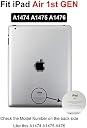
🔧 Repair, Revive, Rejoice! Your iPad Air deserves the best.
This iPad Air 1st Generation Screen Replacement Touch Glass Digitizer is specifically designed for models A1474, A1475, and A1476. It features a highly durable, scratch-resistant surface with 9H hardness and 99.9% transparency for an optimal viewing experience. The package includes a complete repair kit with a video guide for easy installation.
Y**N
Happy with the replacement.
I replaced my iPad hours ago. The screen replacement works well with my old IPad Air gen 1 and no issues have been found.
M**A
What you would expect
The screen is exactly what you would expect. The tools that come with the kit are wonderful and exactly what you need. The instructions are great for the first half of the process and then for the second half they get very rough and sporadic. It was hard to figure out the wires and how to install the new screen from the instructions, so I had to watch a YouTube video just to make sure that I was installing everything exactly where it was supposed to be (the wires broke when removing the old screen, so I couldn’t just plug and chug using the old wires to go off of). Unfortunately the new screen had a crack that wasn’t visible until I had it on the black of the iPad and didn’t see it until I was already in the process of replacing the new screen after removing the old screen. At that point I had no choice but to continue with replacing the screen since the old one was even more damaged in the removal process. I contacted the seller, who requested a video and order number in order to replace the screen. We are currently in the process of waiting to see if a replacement screen is sent. The seller has been gracious and easy to work with so far, so fingers crossed a new screen comes and is easy to replace the second time.*update: the seller did mail out a new replacement screen. Haven’t replaced it just yet, but all appears to be good!
P**.
Cheap fix
This is not my first time repairing an iPad, so the lack of instruction was no problem for me, it is very easy to install, and the hardest part of any ipad screen repair will always be the removal of the old screen (especially if it is shattered, if shattered be sure to install a sticky screen protector to the shattered screen and heat it very well to insure adhesion).Be sure to use lots of isopropyl alcohol to clean the inner border of the frame where the adhesive mates the screen to the frame, or your new screen will not stick or lay flat.There are four screws that hold the LCD display in place (one in each corner, two under factory tape) once unfastened, lift the LCD and remove the three screws that hold down the plate attached to the plug connecting the LCD to the board. Beneath this there are the three additional ribbon cables which need to be removed (two for the digitizer that clip in and one for the home button wich needs to have a lever flipped up to be removed).Next do your cleaning of the frame.Apply new adhesive to the frame.Plug the ribbon cables back in where the old ones were removed, be sure the home button ribbon is pushed in as far as the previous one and that the white line is parallel to the clip that holds it in place, be sure the other two ribbons make a tactile "click" when going into place.Ensure you removed the protective tape from the edge of the new ribbon cable where the digitizer cables come out, as well as the blue border tape and the interior screen protector.Next, reinstall the LCD screen, first the three tiny screws to hold the cable in place, then the four corner screws. This is followed by installation of the glass itself.Start by using the plastic flat blade to ensure the edge of the digitizer ribbon seats into the groove in the frame and then slowly and deliberately push the screen back tight to that side of the frame, seating it tightly and working your way around the edges until the entire glass sits flush in its chamfer. If you mess this up, gently work the plastic blade under to lift the glass and work it into place again.Once the glass is properly positioned and sitting flat in place, turn on the iPad and be sure everything is in working order.If everything works well, use your heat gun (A hair dryer on its highest-rated heat setting can work, it just takes longer) to get the edge of the screen and the frame up to a high enough temperature that the adhesive will start to melt, now using a cotton glove or a piece of paper towel press firmly and rub along the edges where the adhesive was applied to ensure it makes a solid bond.Congratulations, instead of throwing something away, you fixed it.
D**E
Take your time!
So, I ended up cracking my glass at the end of it all. Replacing the digitizer on an iPad is not for those who like to rush things especially if you have never done it. I actually have done a few with success but, i was a little rusty when i started this one for a friend. I got to the very end of it and as i was putting pressure on the new glass, I cracked it. I think the side with the connectors didn’t tuck in all the way. So when i started pressing down on the glass, the cable didn’t allow the glass to sit flush causing it to break when i pressed down. As for the quality of the digitizer, it seemed to work very well and the cut on the glass matched the iPad very well also. Unfortunately i wont be able to comment on the durability since I broke it already. All in all, it is not JPUNG fault, it was mine. Best of luck who want to try this at home.
K**P
Adhesive didn’t stay but they’re sending me a new one
The adhesive didn’t hold, I tried reheating it like the directions said, but it kept coming off, the screen then fell out and got a crack in it, it still works but I have to hold the screen in place with my hand or lay it flat. I contacted the seller and they will be sending me a new one to replace this one, so hopefully it stays on better this time! The seller responded quickly.Update, they sent me a new one free of charge to replace the broken one, this one is staying in place much better and feels more secure. I do wish this had a video or a link on how to do this with their product as the YouTube videos are of other screen replacements that are slightly different with regard to color and placement of adhesives, tools, etc. but even without it, it was easy to replace, just took longer.
S**Y
Easy to install but the button only lasted a week. 😞
I found a very thorough video. Followed it and everything ended up perfect. Use a heat gun or hair dryer to soften the adhesive.A few weeks later…Unfortunately after a week of regular use the button stopped working and is apparently broken. The screen has started to glitch and a small corner of it has no touch capability. I have used various screens on different Apple devices that I have had to replace and I’ve never had the disappointment that I have with this one.Maybe I got a lemon and it be great if they replaced it for me but I’m not sure. It was easy to install just like other screens that I’ve done but it just doesn’t quite work like it should.
Trustpilot
1 month ago
2 weeks ago
2 weeks ago
2 weeks ago