
DOWNLOAD THE APP


Customer Services
Copyright © 2025 Desertcart Holdings Limited
DOWNLOAD THE APP
🎉 Elevate Your Artistry with Every Print!
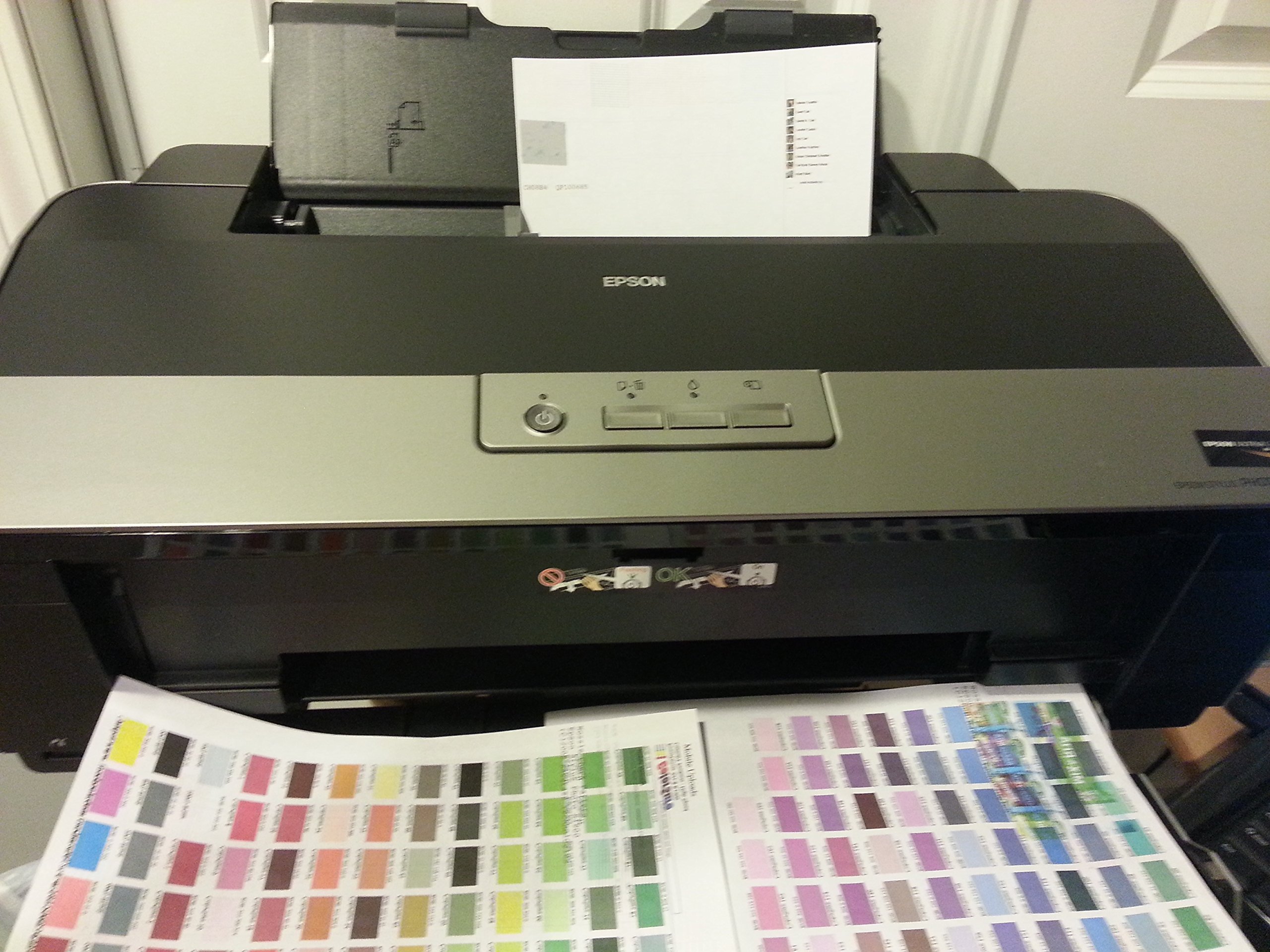
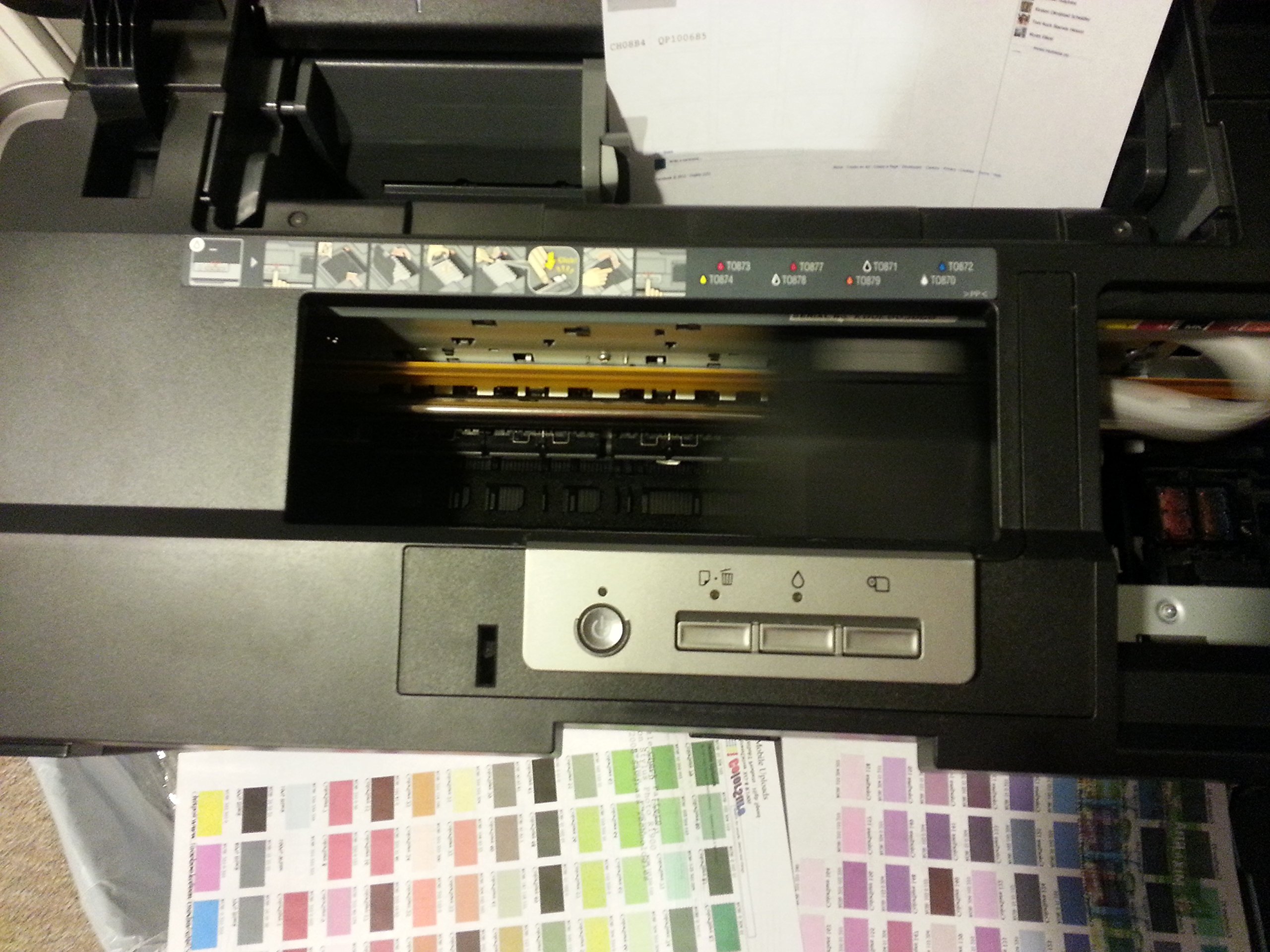
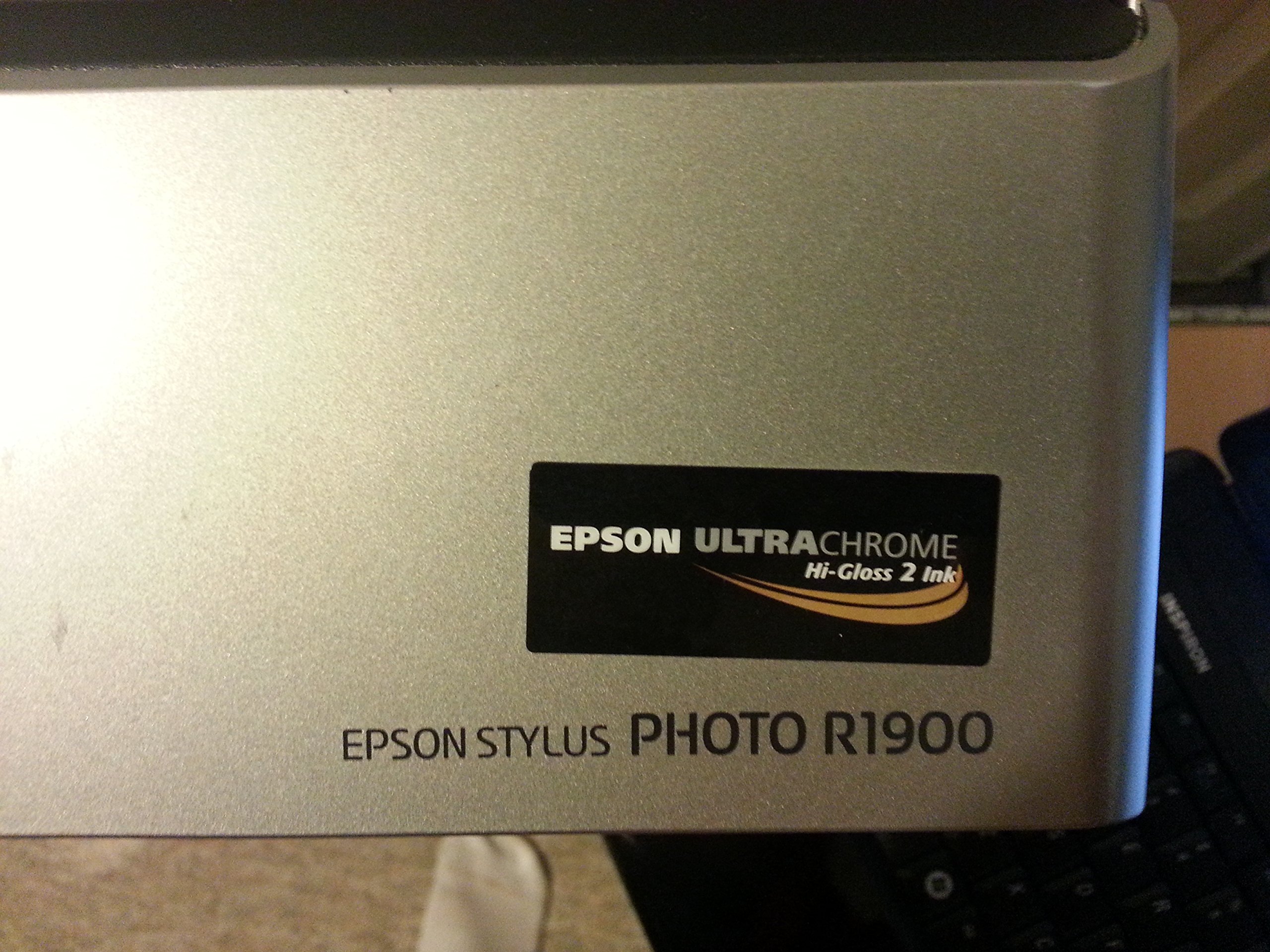
The Epson Stylus Photo R1900 is a large format photo printer designed for professionals seeking gallery-quality prints. It features advanced ink technology for vibrant colors and superior glossy finishes, along with improved print speeds and roll paper support for panoramic creations.
H**.
State of the Art
I'll start with a short review since I just got the printer and have only run 5 prints through it. I will update in a week or so with more information.Setup and installation was easy. I have it on my network for my Windows machines and it is connected directly to my Mac Pro. The install documentation said to get the latest driver for Leopard off of their site, which I did and installed with no problem. The latest Windows driver was on the installation CD.The reason I called this review "State of the Art" is Epson developed Radiance, the new color-matching technology built into the R1900. This is the first printer with it, even the current Epson Pro printers don't have it. [...] has an article about it.The few pictures I have printed are beautiful and they printed very fast.I printed 3 on Epson's Ultra Premium luster 8.5 x 11 paper using Photoshop CS2. I tried different settings for each print of the same standard color matching target. All three printed very nice and as expected, a little different. Using "Photoshop Determines Colors", "Printer Determines Colors" and "No Color Management", with appropriate settings on the printer driver. So it will be up to you to decide which settings you want to use.Next, as a test I printed a photo, of my daughter, on plain HP Bright White paper. WOW, is all I can say. Plain paper and it looked great.For my last test I picked a random paper size, 12" x 12", that I cut from a 13" x 19" sheet of matte paper. I changed the paper size in the driver and printed. No problem, it printed just fine and also was beautiful.I plan on getting a roll of paper too. I've wanted to print some banners, something I couldn't do with my current Canon I9900.So far it is everything I expected it to be. However, I do plan on keeping the I9900 because sometimes I know I will want a dye (not pigment) print (and I still have Canon ink and paper left).I will post more soon.Update 3-10-08:I have been playing with the settings on the driver to see which I like best. It is a good/bad thing that there are so many settings to play with. I figure I will eventually figure out which I like best. There are subtle differences in color, skin tones and gray scales on the gray scales. If you are interested in the test targets, you can download the printer test images I used from [...]I will start printing some of my real pictures to compare with the I9900 versions. So I will post another update in a week or two.I tried a roll in the printer. It was surprising easy to set up and use. You put the holders on the roll, mount it on the back of the printer, then feed the paper into the printer in the slot on the back. The printer recognizes you are doing it, then grabs the paper to feed in to the proper starring point.If you print multiple images, the printer spaces them 1" apart. Unfortunately, Epson still has it's artificial limit length of 44". There are expensive RIPs (raster image processors) that will allow you to printer longer images, but unless you are going to do this a lot, it can't be worth it. The cheapest I found is $500.I've decided that I probably will not use the "roll" on the printer. I want to printer banners every so often, but to use the roll for one print wastes about 10" of paper. That is the initial feed of about 4" and when you cut it on the back to free it, another 6". If you are printing many prints on a roll, then it will be worth it and easier. I suggest (and what I did in my second test), was just cut a 44" of paper (from the roll) and feed it though the (normal) auto paper feeder and that worked fine for the banner without any waste.As for ink usage, I've hardly made a dent with the 10 8x10s, 1 12x12, 3 8.5 x 44 prints I've made. The banners were not printed at high resolution to save ink for my testing. I love Amazon, but it's ink prices for this printer are currently way out of line. Even the Epson store has them for way less. I hope that changes soon.Update 3-26-08 (my last update).After printing 25 more 8x10 high resolution (and in slow mode for better quality), I finally ran out of ink in one cartridge (and it was the gloss optimizer). After more reading, I think I used the wrong setting for the gloss and was wasting it on white area outside of the image. I'm still learning.Some of the other inks are pretty low, so I have stocked up.I still have not printed on a DVD/CD yet, but I'm sure that will be fine.There is not much more for me to say except I am very happy with this purchase and expect to use this printer for the next 3-4 years, when I'm sure something else out there will get my attention.Update 3-22-11Epson just announced the R3000. By the specs, it looks to be the replacement for the R1900. The list price of the R3000 is $850 but the R3000 comes with and uses the Epson UltraChrome K3 ink set, which are the larger inks that cost $40-$50, but are 8x larger than the R1900 inks, which meant to me when I got the R3880 (that use the same ink), that the savings in ink will pay for the printer over the R1900.Howard
L**A
Huge Ink Waster- even in Grayscale mode
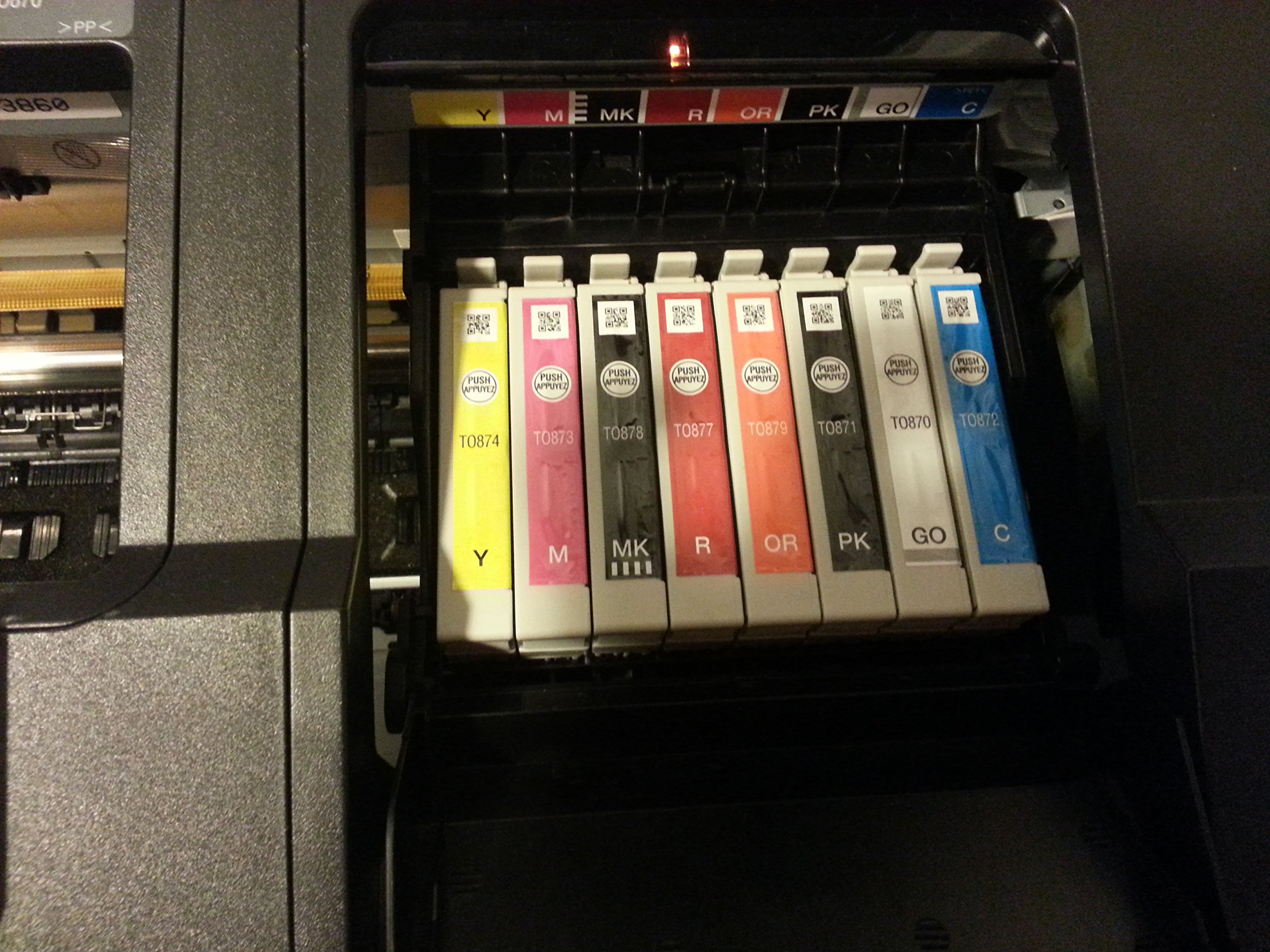
Although the print quality is nice, don't buy this unless you have a spare $100 or more to waste every month (yes, MONTH) on ink. Somehow the color ink gets eaten up (and quickly!) even if you print in Grayscale mode. Heck, even the 'Gloss Optimizer" crap gets eaten up if you print in Grayscale, and the printer won't let you print AT ALL if even one cartridge is empty.I print maybe 75 items a month- usually less than a page, and 90% grayscale, and I am seriously being driven to the poorhouse by replacing ink constantly. Nice for Epson, sucks for us.
S**D
High Tech Robbery
Where do I even start? I guess I should say the very first print it made was acceptable, and that it still looks good sitting, worthless, on the shelf one month and 15 prints after purchase. I am about $700 into the printer, ink and paper, and I do not have a single viable print to show for it. By the time I got the color settings right, it was out of blue ink, and the horrible part is, when you replace one cartridge, it goes through a "cleaning" that sprays out so much ink it might empty another cartridge. Then you replace that and they all lose more ink. I had to replace 3 inks in a row without printing anything. The worst part is the smart-chips and HORRENDOUS availability of the ink. This isn't the place to point out that the inks are necessarily overpriced because thats Epson's business model, but I do want to complain that these specific inks are VERY hard to come by. I live in Oakland, and having called stores in Oakland, San Fransisco, and San Jose as well as calling and asking Epson where the ink is, I had to order it online. Then I plugged the ink in, and the "smart-chip" said it was already empty. So it takes 2 days to get ink, and there is a part in them that can come broken, the printer runs out of ink without even printing, and whats worse I'm 15 prints in and there is SEVERE banding already. I want to wrap this all up by saying that after weeks of effort, countless phone calls, hundreds of dollars, trolling many forums, worrying, fretting, and paying a ton of overnight shipping the only prints I was able to sell at the art fair I bought this thing for I had to print off a 5yr old HP!! Never buy Epson. Stop being fooled by the pretty boxes and lies about high print quality.Before you think another moment about buying this go to youtube and look up things like "epson scam" "epson ink" "smart chip" and just enjoy an evening of irate consumers. It should also help you to know that [...] redirects to epson - as if they are expecting their cheated customers to complain.
Trustpilot
1 week ago
1 week ago